
REST API description
This page describes how to access and use the REST API. It allows to post-process data with 3rd party systems. The Allegro Network Multimeter web interface is itself based on this REST API and all displayed statistics can be extracted from the Allegro Network Multimeter with this API.
General API Setup
Section titled “General API Setup”REST API Interface
Section titled “REST API Interface”All Allegro Network Multimeter statistics are derived from HTTPS requests and provided as JSON objects. The requests are stateless, i.e. there are no prerequisites and there is no fixed sequence of requests necessary. Example requests related to a specific module and statistics can be seen in the web interface by opening the browser development console ([Ctrl]+[Shift]+[I] for Chrome and Firefox, [F12] for Edge).
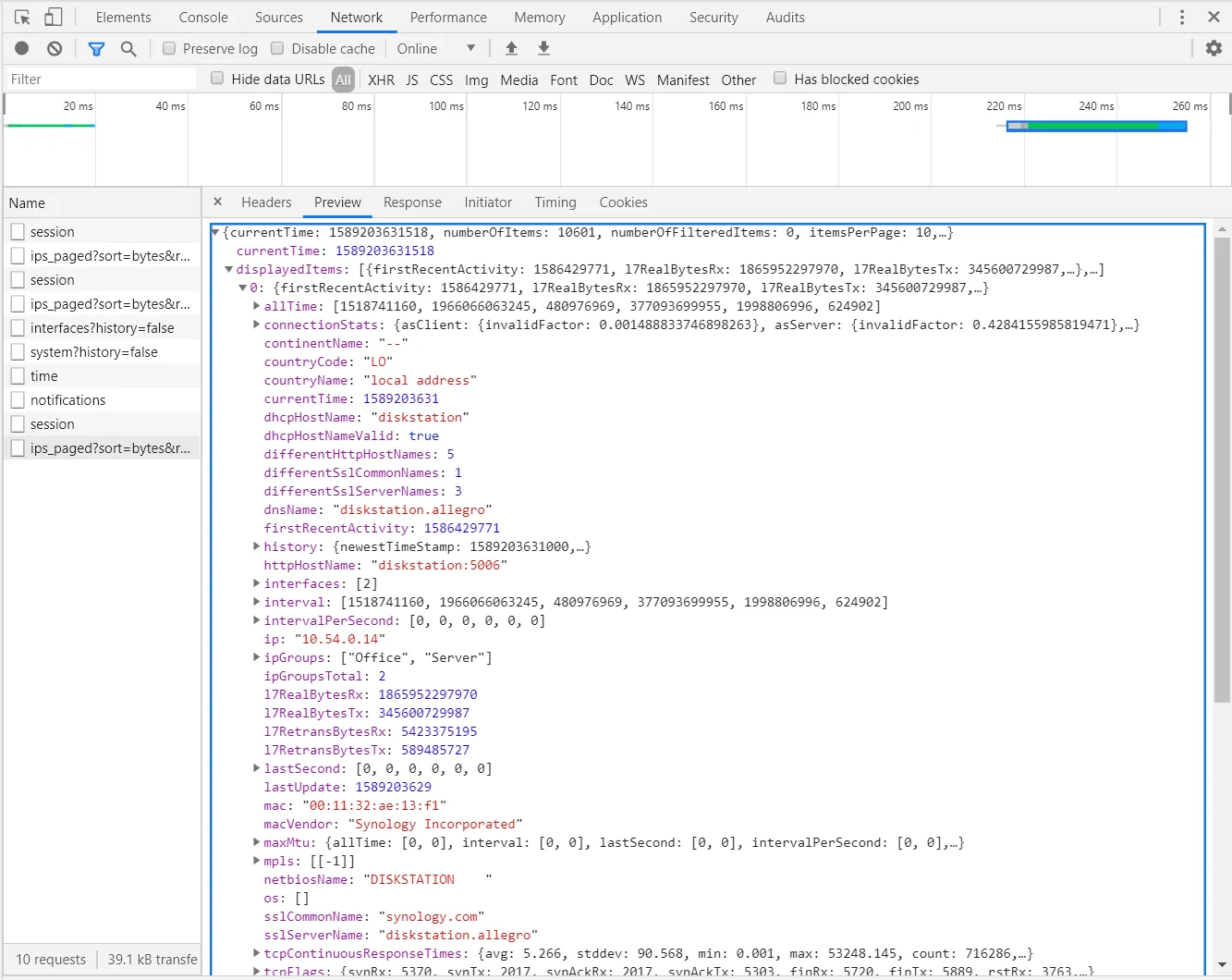
Here an example of the structured JSON data for the IP overview. This data has been extracted with the Google Chrome developer console while accessing the IP statistics page.
Credentials
Section titled “Credentials”The credentials are the same as for the web interface. Users with the admin role are allowed to access all APIs per default. With version 4.1 the access can be configured/restricted in the role settings. A non-admin user has read access to most of the statistics. If you have enabled the pcap role, the capture URL is also usable via the API.
Starting with version 4.2, it is possible to use API tokens instead of username/password. Permissions for API tokens can be configured when creating the token.
Allegro Packets recommends to set up a separate non-admin user with or without the pcap role for the REST API if only statistics shall be gathered. This will prevent to accidentally shut down or change any configuration by calling the REST API.
Useful shell commands and their parameters
Section titled “Useful shell commands and their parameters”Most examples are written for curl. Curl is available for many operating systems like Linux or Windows. Curl needs a few parameters for the access of the Allegro Network Multimeter:
The parameter -u allows you to set a user name and password for the
request.
The parameter -k will allow self-signed certificates. This is not
necessary if a proper trusted certificate is installed on the Allegro
Network Multimeter.
The parameter -s or --silent mutes any debugging output.
The URL of the API call is the first argument. It is recommended to
enclose the API call with the single quote character ' to avoid replacing the
argument (unless you need to replace parts of it).
curl --silent -k -u USER:PASSWORD 'https://allegro-mm-XXXX/...'Please note that you might need to use curl.exe in windows.
Using API token
Section titled “Using API token”When using an API token, the authentication is added using parameter
-H to add a special HTTP request header (with API_TOKEN as a
placeholder for the real token):
curl --silent -k -H "Authorization: Bearer API_TOKEN" 'https://allegro-mm-XXX/...'This can be further simplified by writing the header into a separate file (with the benefit that the credentials are not visible to every user on the system in the process list), for example api-token-header.txt:
Authorization: Bearer API_TOKENNow this file can be referenced by curl:
curl --silent -k -H @api-token-header.txt 'https://allegro-mm-XXX/...'PowerShell
Section titled “PowerShell”The Integrated Windows PowerShell can be used to access the REST API. This guide requires at least PowerShell v6.
The command to call a REST API is Invoke-RestMethod. Invoke-RestMethod on the PowerShell needs a few parameters for the access of the Allegro Network Multimeter:
To set the user name for basic authorization, use the -Headers
parameter:
-Headers @{Authorization = ("Basic {0}" -f [Convert]::ToBase64String([Text.Encoding]::ASCII.GetBytes(("{0}:{1}" -f 'USER', 'PASSWORD'))))}When sending POST requests (or other requests with a body), the request content type must be specified (not necessary for requests with empty request body (GET, DELETE)):
-ContentType 'application/json'To disable the certificate check, use:
-SkipCertificateCheckThe URL must be passed with the parameter -Uri, so the full command
is:
Invoke-RestMethod -Uri 'https://allegro-mm-XXXX/...' -Headers @{Authorization = ("Basic {0}" -f [Convert]::ToBase64String([Text.Encoding]::ASCII.GetBytes(("{0}:{1}" -f 'USER', 'PASSWORD'))))} -Method 'Get' -SkipCertificateCheckUsing API token
Section titled “Using API token”When using an API token, the Authorization header changes (with API_TOKEN as a placeholder for the real token):
Invoke-RestMethod -Uri 'https://allegro-mm-XXXX/...' -Headers @{Authorization = ("Bearer API_TOKEN")} -Method 'Get' -SkipCertificateCheckjq is a powerful tool to extract parameters from a JSON document. If called without parameters, jq formats the JSON output into a readable format with indenting and new lines. It also allows to select specific values and do basic operations like addition with this values. Please read the jq documentation for more information.
API hierarchy
Section titled “API hierarchy”Query available URIs with OPTIONS
Section titled “Query available URIs with OPTIONS”The Allegro Network Multimeter REST API has the fixed URI API/stats
for statistics. To see all possible subtrees of a specific request, use
the OPTIONS request instead of GET. It can be set with the
parameter -X OPTIONS for curl.
$ curl --silent -k -u USER:PASSWORD 'https://allegro-mm/API/stats' -X OPTIONS{ "subResources": [ "modules", "reports", "incidentReporting", "time", "ringBufferReplay", "pcap", "reset", "interfacesError", "interfaces", "load", "processing" ]}This allows you to query for example for all modules that are available for a specific release of the Allegro Network Multimeter:
$ curl --silent -k -u USER:PASSWORD 'https://allegro-mm/API/stats/modules' -X OPTIONS{ "subResources": [ "pppoe", "lldp", "groups", "mpls", "opc_ua", "quality", "ipsec", "profinet", "multicast", "burst_analysis", "global_incidents", "ptp", "ntp", "icmp", "stp", "sip", "smb", "dpa", "l4_ports", "netbios", "crt", "dpi", "http", "ssl", "dns", "dhcp", "location", "qos", "ip", "mac_protocols", "vlan", "arp", "packet_size", "mac", "capture" ]}URI content parameters
Section titled “URI content parameters”Some modules allow to use a parameter as part of the URI, like the IP or
MAC address. The path API/stats/modules/ip/ips allows you to use an IP
address as next URI element:
$ curl --silent -k -u USER:PASSWORD 'https://allegro-mm/API/stats/modules/ip/ips' -X OPTIONS{ "subResources": [ "protocol", ":ip" ]}The path of an IP address shows all further available elements:
$ curl --silent -k -u USER:PASSWORD 'https://allegro-mm/API/stats/modules/ip/ips/10.0.54.254' -X OPTIONS{ "subResources": [ "sip_request_responses", "peers_ports", "sip_responses", "sip_requests", "qos", "ports", "connections", "protocols", "macs", "peers", "tcpStats" ]}JSON output traffic counters
Section titled “JSON output traffic counters”All counters are aggregated counters, either for the selected time interval or since the processing start of the Allegro Network Multimeter. Many traffic counters have 4 separate values. These traffic counters are represented as a JSON array with at least 4 lines. The structure is as follows:
- Line 1: received packets, extraction example:
jq .lastSecond[0] - Line 2: received bytes, extraction example:
jq .lastSecond[1] - Line 3: transmitted packets, extraction example:
jq .lastSecond[2] - Line 4: transmitted bytes, extraction example:
jq .lastSecond[3] - Additional lines are module specific.
The following counters exist for many REST APIs like IP, MAC, l4 protocol, l7 protocol and many more:
- interval: Values of the selected time interval. If no interval is specified, this is similar to lastSecond.
- allTime: Values since start of the Allegro Network Multimeter.
- lastSecond: Values of the last second.
- intervalPerSecond: Average per second value of the selected time interval. If no interval is specified, this is similar to lastSecond.
Please note that all counters are byte counters, not bit counters. You need to multiply the counters by 8 to get the bitrate.
This example extracts the received bytes of the last second of a specific IP:
curl --silent -k -u USER:PASSWORD 'https://allegro-mm/API/stats/modules/ip/ips/10.1.2.3' | jq .lastSecond[1]This example extracts received and transmitted bytes of the last second of a specific IP:
curl --silent -k -u USER:PASSWORD 'https://allegro-mm/API/stats/modules/ip/ips/10.1.2.3' | jq '.lastSecond[1] + .lastSecond[3]'API parameters
Section titled “API parameters”The Allegro Network Multimeter REST API has a number of query parameters that can be added to modify the request. By default, the API will display the real time counters since the last restart of the processing unit.
This example extracts the amount of received and transmitted bytes for an IP address since the processing start of the Allegro Network Multimeter. It queries via the REST API the JSON and then adds the second value (row 1: rx bytes) and 4th value (row 3: tx bytes) of the interval counters together:
$ curl --silent -k -u USER:PASSWORD "https://allegro-mm/API/stats/modules/ip/ips/10.54.0.254" | jq '.interval[1] + .interval[3]'Time interval selection
Section titled “Time interval selection”Requests can be given a time interval. If present, the interval counters are adjusted to this interval. The following GET parameters are necessary:
- starttime, endtime: Start and end time of the interval.
Format: seconds since 1970/01/01 UTC (Unix time, epoch). You can use
date +%son your machine to adjust to the best interval. Please consult the man page ofdatefor more parameters. - skiphistorydata: Control if the JSON shall include the history data without
datasets. This reduces the amount of transferred bytes if datasets are not
required to render a graph. Can be
falseortrue, default:false. - timespan: Required resolution for the graph dataset.
This example extracts the amount of received and transmitted bytes for an IP address for the last 24 hours:
$ curl --silent -k -u USER:PASSWORD "https://allegro-mm/API/stats/modules/ip/ips/10.54.0.254?starttime=$(date --date="1 day ago" +%s)&endtime=$(date +%s)&skiphistorydata=true" | jq '.interval[1] + .interval[3]'List queries
Section titled “List queries”List queries are requested with pagination parameters to reduce the size of the resulting JSON objects and to increase performance. In the resulting JSON object, the list elements are stored in the displayedItems array. The following list parameters are possible:
- sort: Sorting criteria for the list. Following criterias are
supported for most lists:
- bytes: Received and transmitted bytes (either in selected time interval or since start of the Allegro Network Multimeter).
- rxbytes: Received bytes.
- txbytes: Transmitted bytes.
- bps: Received and transmitted bytes per second (either average per second value of the selected time interval or last second, if no interval is specified).
- rxbps: Received bytes per second.
- txbps: Transmitted bytes per second.
- reverse: Sort ascending (
false) or descending (true). - page: Requested page.
- count: Amount of entries in the list. Maximum is 100.
- values: Amount of maximal values in history object(s).
This example shows the IP address with the highest amount of traffic:
curl --silent -k -u USER:PASSWORD 'https://allegro-mm/API/stats/modules/ip/ips_paged?sort=bps&reverse=true&page=0&count=1' | jq .displayedItems[0].ipThis example shows up to 9999 peers of a specific IP address:
curl --silent -k -u USER:PASSWORD 'https://allegro-mm/API/stats/modules/ip/ips/10.1.2.3/peers?sort=bytes&reverse=true&page=0&count=9999×pan=60&values=100' | jq '.displayedItems[].ip'PCAP extraction
Section titled “PCAP extraction”The Allegro Network Multimeter allows to extract the raw packets with
the REST API with the special capture URI /API/data/modules/capture:
curl -k -u USER:PASSWORD 'https://allegro-mm/API/data/modules/capture?expression=ip==10.1.2.3' > path_to/capture.pcapThe available parameters are:
- startTime: The start time of the capture. The first packet with exactly this or a later time will start the capture. The time format must be microseconds after January, 1st 1970 UTC (Unix time, epoch). If the start time is in the past, make sure you set the fromCaptureBuffer parameter accordingly. If not specified, the current time will be used.
- endTime: The end time of the capture. The first packet with
exactly this or a later time will stop the capture. The time format
must be microseconds after January, 1st 1970 UTC (Unix time, epoch).
If not specified, unlimited will be used. The end time can also be set
to
now, in this case the timespan parameter will be taken and the corresponding start time will be calculated. - timespan: The time span in seconds. Will be used if no startTime
but endTime with
nowis set. - expression: The filter expression. There are no whitespaces
allowed. You may use
%20instead. See Capture module for available expressions. - snapPacketLength: The maximum size of a packet applied on Layer 2 without frame check sequence. If a packet is larger than this value, it is truncated. Use 65535 for unlimited size.
- fromCaptureBuffer: Whether to extract data from the packet ring
buffer (
true) or just live traffic (false). - captureBufferSlotId: In case a cluster packet ring buffer is used, the ID of the ring buffer must be given. The ID of the first ring buffer is 0. If this parameter is omitted, 0 will be taken as default value.
- captureToMedia: Whether to store a PCAP on an external storage
device (
true) or download to your computer (false). Requires the use of the storageUuid parameter. - storageUuid: Specifies the storage device to store the capture file on when captureToMedia is true.
- datalinkType: Specifies the datalink type to be used in the PCAP.
The default value is
ethernetbut if raw 802.11 WiFi packets are to be captured the datalink type must beradiotapto create a PCAP file with Radiotap headers and 802.11 WiFi packets. - mm-id: If you are extracting a PCAP from a parallel PCAP analysis
job or a multi device connected Allegro Network Multimeter, you have
to specify the device and the slot where to get the data from. The
syntax is:
mm-id=<device name>:<slot ID>. If the capture shall be performed on the local device, the device name can be omitted (e.g.mm-id=:1for the first replay slot on the local device).
Example to capture everything from now on:
curl -k -u USER:PASSWORD 'https://allegro-mm/API/data/modules/capture' > path_to/capture.pcapExample to capture a specific IP of the last hour:
curl -k -u USER:PASSWORD "https://allegro-mm/API/data/modules/capture?expression=ip==10.1.2.3&starttime=$(($(date --date="1 hour ago" +%s%N)/1000))&endtime=$(($(date +%s%N)/1000))&fromCaptureBuffer=true" > path_to/capture.pcapExample to capture a specific IP of a given time span of the first parallel PCAP analysis slot:
curl -k -u USER:PASSWORD "https://allegro-mm/API/data/modules/capture?expression=ip==10.1.2.3&starttime=$(($(date --date="2020-07-15 08:55:00" +%s%N)/1000))&endtime=$(($(date --date="2020-07-15 09:55:00" +%s%N)/1000))&fromCaptureBuffer=true&mm-id=:1" > path_to/capture.pcapPCAP upload and analysis
Section titled “PCAP upload and analysis”PCAP upload and analysis can also be done via API calls.
The PCAP upload is split into 3 commands. First, the replay is being initialized. Then the analyzing is started. In the last step the PCAP is streamed to the Allegro Network Multimeter. Depending on the size of the PCAP the third step could take some time, but the Allegro Network Multimeter already allows access to the statistics of the already analyzed packets via the web interface or API.
The example assumes that PCAP parallel analysis is enabled in the global settings, so the PCAP analysis will be done in slot 1 and a dedicated ring buffer is available.
curl -k -u USER:PASSWORD "https://allegro-mm/API/system/replay/upload" --header "Content-Type: application/json" -d '{"fileName": "abc.pcapng", "fileSize": '$(stat -c %s abc.pcapng)', "replaySlotID": 1, "forceSlotID": true, "useReplayBuffer": true}'curl -k -u USER:PASSWORD "https://allegro-mm/API/data/pcap?mm-id=:1" --header "Content-Type: application/json" -d '{"command":"start"}'curl -F 'name=file' -F 'filename=abc.pcapng' -F 'file=@path_to/abc.pcapng' -k -u USER:PASSWORD "https://allegro-mm/API/system/analyze-pcap?replaySlotID=1"Virtual Link Groups
Section titled “Virtual Link Groups”The Allegro Network Multimeter REST API allows to access all link groups
by the parameter group. The group index starts at zero, which is the
default value.
This example extracts the traffic of the IP 10.54.0.254 from the second virtual link group (index 1).
$ curl --silent -k -u USER:PASSWORD "https://allegro-mm/API/stats/modules/ip/ips/10.54.0.254?group=1" | jq '.interval[1] + .interval[3]'Parallel PCAP analysis
Section titled “Parallel PCAP analysis”The Allegro Network Multimeter can process in parallel offline traffic
like a PCAP file or a ring buffer. In case a parallel PCAP analysis is
running, the API call must be given either the additional header field
"X-AllegroPackets-Multimeter-ID: :1" or the parameter mm-id with the
PCAP instance ID.
This allows to extract information of automated PCAP uploads.
Multi-device analysis
Section titled “Multi-device analysis”If the Allegro Network Multimeter is configured as a gateway for
multiple Allegro devices by the Multi-device
settings, you need to
add either the additional header field
"X-AllegroPackets-Multimeter-ID: hostname" or the parameter mm-id
where the hostname must be the same as configured in the multi-device
settings.
REST API Examples
Section titled “REST API Examples”MAC statistics
Section titled “MAC statistics”Extract the packets per second statistic of the MAC broadcast address:
curl --silent -k -u USER:PASSWORD 'https://allegro-mm/API/stats/modules/mac/macs/ff:ff:ff:ff:ff:ff'IP statistics
Section titled “IP statistics”curl --silent -k -u USER:PASSWORD 'https://allegro-mm/API/stats/modules/ip/ips/10.1.2.3'Pretty displaying JSON output with jq
Section titled “Pretty displaying JSON output with jq”curl --silent -k -u USER:PASSWORD 'https://allegro-mm-XXXX/API/stats/modules/ip/ips/10.1.2.3' | jqCapture a specific IP
Section titled “Capture a specific IP”curl -k -u USER:PASSWORD 'https://allegro-mm-XXXX/API/data/modules/capture?expression=ip==10.1.2.3' > path_to/capture.pcapCapture two IP addresses with ports on a specific Layer 4 protocol
Section titled “Capture two IP addresses with ports on a specific Layer 4 protocol”curl -k -u USER:PASSWORD 'https://allegro-mm-XXXX/API/data/modules/capture?expression=IP==10.1.2.3:62887 and IP==10.1.2.100:548 and l4Protocol==TCP' > path_to/capture.pcapOutput IP Table as CSV file
Section titled “Output IP Table as CSV file”curl -k -u USER:PASSWORD 'https://allegro-mm-XXXX/API/stats/modules/ip/ips_paged?csv=true' > path_to/file.csvOutput Connection Table as CSV file
Section titled “Output Connection Table as CSV file”curl -k -u USER:PASSWORD 'https://allegro-mm-XXXX/API/stats/modules/ip/globalConnections/csv?csv=true' > path_to/file.csvMulti-device Capture Python script example
Section titled “Multi-device Capture Python script example”#! /usr/bin/python
""" This example script starts a parallel download-capture for each 'multi-device' of a given allegro packets multimeter. """
import requestsimport threadingimport datetimeimport shutil
def start_capture_download(host: str, device: dict, duration: int): start = datetime.datetime.now() end = start + datetime.timedelta(seconds=duration) file = device["host"] + start.strftime("%m-%d-%Y_%H-%M-%S") + ".pcap" params = { "mm-id": device["id"], "endTime": int(end.timestamp() * 1000000), }
with session.get(host + "/API/data/modules/capture", params=params, stream=True) as resp: with open(file, "wb") as fh: shutil.copyfileobj(resp.raw, fh)
host = "https://allegro-mm-xxxx"session = requests.Session()session.auth = ("user", "password")# session.verify = False # disable ssl verification
with session.get(host + "/API/system/multidevice/devices") as resp: devices = resp.json()
active_devices = []for device in devices: if device["active"]: active_devices.append(device)
threads = []for device in active_devices: t = threading.Thread(target=start_capture_download, args=(host, device, 30)) t.start() threads.append(t)
for t in threads: t.join()Python script example - Top IPs
Section titled “Python script example - Top IPs”#! /usr/bin/python
import requests
requests.packages.urllib3.disable_warnings()
host = "https://allegro-mm-xxxx"session = requests.Session()session.auth = ("user", "password")session.verify = False # disable ssl verification
params = { "sort": "bytes", "reverse": True, "page": 0, "count": 10, "timespan": 60, "mm-id": "local:1" #0 live traffic, 1 1st PCAP analysis}
with session.get(host + "/API/stats/modules/ip/ips_paged", params=params) as resp: ip_list = resp.json()
for ip_entry in ip_list["displayedItems"]: bytes_rx = ip_entry["interval"][1] #meaning of index defined in history.rows bytes_tx = ip_entry["interval"][3] print(ip_entry["ip"] + ": " + str(bytes_rx + bytes_tx) + "B")Python script example - Top IPs pagination
Section titled “Python script example - Top IPs pagination”#! /usr/bin/python
import requests
requests.packages.urllib3.disable_warnings()
host = "https://allegro-mm-xxxx"session = requests.Session()session.auth = ("user", "password")session.verify = False # disable ssl verification
params = { "sort": "bytes", "reverse": True, "page": 0, "count": 10, "timespan": 60, "mm-id": "local:1" #0 live traffic, 1 1st PCAP analysis}
with session.get(host + "/API/stats/modules/ip/ips_paged", params=params) as resp: ip_list = resp.json() number_of_items = ip_list["numberOfItems"] number_of_pages = ip_list["numberOfPages"] items_per_page = ip_list["itemsPerPage"]
for page in range(0, number_of_pages): params["page"] = page with session.get(host + "/API/stats/modules/ip/ips_paged", params=params) as resp: ip_list = resp.json()
for ip_entry in ip_list["displayedItems"]: bytes_rx = ip_entry["interval"][1] #meaning of index defined in history.rows bytes_tx = ip_entry["interval"][3] print(ip_entry["ip"] + ": " + str(bytes_rx + bytes_tx) + "B")Python script example - Top IPs CSV download
Section titled “Python script example - Top IPs CSV download”#! /usr/bin/python
import requestsimport shutil
requests.packages.urllib3.disable_warnings()
host = "https://allegro-mm-xxxx"session = requests.Session()session.auth = ("user", "password")session.verify = False # disable ssl verification
params = { "csv": True, "mm-id": "local:1" #0 live traffic, 1 1st PCAP analysis}
headers = { "Accept-Encoding": "" # for compression use "gzip"}
output = "ip_list_out.csv"
with session.get(host + "/API/stats/modules/ip/ips_paged", params=params, headers=headers, stream=True) as resp: with open(output, "wb") as fh: shutil.copyfileobj(resp.raw, fh)Python script example - Retrieval of global connections and PCAP download of a certain connection
Section titled “Python script example - Retrieval of global connections and PCAP download of a certain connection”#! /usr/bin/python
import requestsimport shutilimport timeimport datetime
requests.packages.urllib3.disable_warnings()
host = "https://allegro-mm-xxxx"session = requests.Session()session.auth = ("user", "password")session.verify = False # disable ssl verification
params = { "sort": "bytes", "reverse": True, "mode": "rtpStats", "mm-id": "local:1" #0 live traffic, 1 1st PCAP analysis}
# get all RTP connections, sorted by byteswith session.get(host + "/API/stats/modules/ip/globalConnections", params=params) as resp: asyncID = resp.json()["asyncID"] asyncUUID = resp.json()["asyncUUID"] #print(resp.json())
finished = Falsesuccess = False
params = { "uuid": asyncUUID, "mm-id": "local:1" #0 live traffic, 1 1st PCAP analysis}
while not finished: with session.get(host + "/API/async/{}".format(asyncID), params=params) as resp: if (resp.status_code == 202): # request still pending time.sleep(1) continue; else: finished = True r = resp.json() if "errorCode" in r and r["errorCode"] == 0: asyncResult = r["asyncResult"] success = True
# get start and end time of second connectionif success and len(asyncResult["displayedItems"]) > 1: rtpConnection = asyncResult["displayedItems"][1] print("{}:{} <-> {}:{}".format(rtpConnection["clientIp"], rtpConnection["clientPort"], rtpConnection["serverIp"], rtpConnection["serverPort"])) print(rtpConnection["l4ProtocolShortName"] + ", " + rtpConnection["dpiProtocol"]) start = datetime.datetime.fromtimestamp(rtpConnection["connectionStart"] / 1000) end = datetime.datetime.fromtimestamp(rtpConnection["lastActivity"] / 1000) print("start: " + start.strftime("%m-%d-%Y %H-%M-%S")) print("end: " + end.strftime("%m-%d-%Y %H-%M-%S"))
# download PCAP of connection params = { "expression": "IP == {}:{} and IP == {}:{}".format(rtpConnection["clientIp"], rtpConnection["clientPort"], rtpConnection["serverIp"], rtpConnection["serverPort"]), "fromCaptureBuffer": True, "captureBufferSlotId": 0, "startTime": rtpConnection["connectionStart"] * 1000, "endTime": rtpConnection["lastActivity"] * 1000, "mm-id": "local:1" #0 live traffic, 1 1st PCAP analysis }
headers = { "Accept-Encoding": "" # for compression use "gzip" }
output = "rtp_connection.pcapng"
with session.get(host + "/API/data/modules/capture", params=params, headers=headers, stream=True) as resp: with open(output, "wb") as fh: shutil.copyfileobj(resp.raw, fh)Python script example - POST command to pause ring buffer
Section titled “Python script example - POST command to pause ring buffer”This script sends a HTTP POST command to suspend the ring buffer #0 (first ring buffer):
#! /usr/bin/python
import requestsimport json
requests.packages.urllib3.disable_warnings()
host = "https://allegro-mm-xxxx"session = requests.Session()session.auth = ("user", "password")session.verify = False  # disable ssl verification
data = {    "command": "changeConfig",    "config": { "isSuspended": True }}
with session.post(f"{host}/API/data/modules/capture/buffer/0", data=json.dumps(data)) as resp:    print(resp.text)
Python script example - Server ports used
Section titled “Python script example - Server ports used”This script generates a CSV file with all IPs and their server ports used. The output format is as follows:
ip address,ip role,server portThe ip role is either asClient or asServer which indicates whether the IP address runs the server port (asServer) or contacts the server port (asClient).
#! /usr/bin/python
import requestsimport csvimport sys
requests.packages.urllib3.disable_warnings()
# set hosthost = "https://allegro-mm-xxxx"
session = requests.Session()
# set credentialsession.auth = ("admin", "allegro")
session.verify = False  # disable ssl verification
csvoutput = csv.writer(sys.stdout)
# loop over list of IPswith session.get(host + "/API/stats/modules/ip/ips") as resp:    ip_list = resp.json()
    for ip in ip_list:        # for each IP get peers_ports as CSV        with session.get(host + f"/API/stats/modules/ip/ips/{ip}/peers_ports?csv=true", stream = True) as resp:            if resp.status_code != 200:                # IP not existing (anymore?)                continue
            ports = {}
            # loop over all ports and accumulate            for nr, line in enumerate(resp.iter_lines()):                if nr == 0:                    # skip header line                    continue
                line = line.decode()                if line:                    for row in csv.reader([line], delimiter=',', quotechar='"'):                        if len(row) < 7:                            continue                        port=row[1]                        if row[6] == "client":                            ports.setdefault("asServer",{})[port] = 1                        else:                            ports.setdefault("asClient",{})[port] = 1
            # now loop over accumulated results and create CSV lines            for connection_type, type_ports in ports.items():                res = list( map( lambda e: (ip, connection_type, e), type_ports.keys() ) )                csvoutput.writerows(res)