
Firmware update
Allegro Packets releases new Firmware on a regular basis. All customers with an active support contract can install a new version for access to new features and improvements. In most cases, it is possible to downgrade to a previous version in the event a problem appears with a firmware update. If this happens, please contact Allegro Packets support, so we can fix the issue.
This sub-page allows for uploading and activating a new Firmware version.
When a new Firmware Release is available from Allegro Packets, you can upload the file by clicking the Upload new firmware button and select the file from your computer. The Allegro Network Multimeter will verify the file and give positive or negative feedback. All available firmwares are listed and can be activated by clicking on the Activate this firmware button on the right. Activating will take some time, an info box will report the current status. You should reload the website to allow the website changes to take effect.
You can activate an older firmware if you choose so in the event there is a problem with a newer release. You may also delete an old firmware from the device by clicking the Delete this firmware button. Old or new firmwares can be uploaded again at any later time.
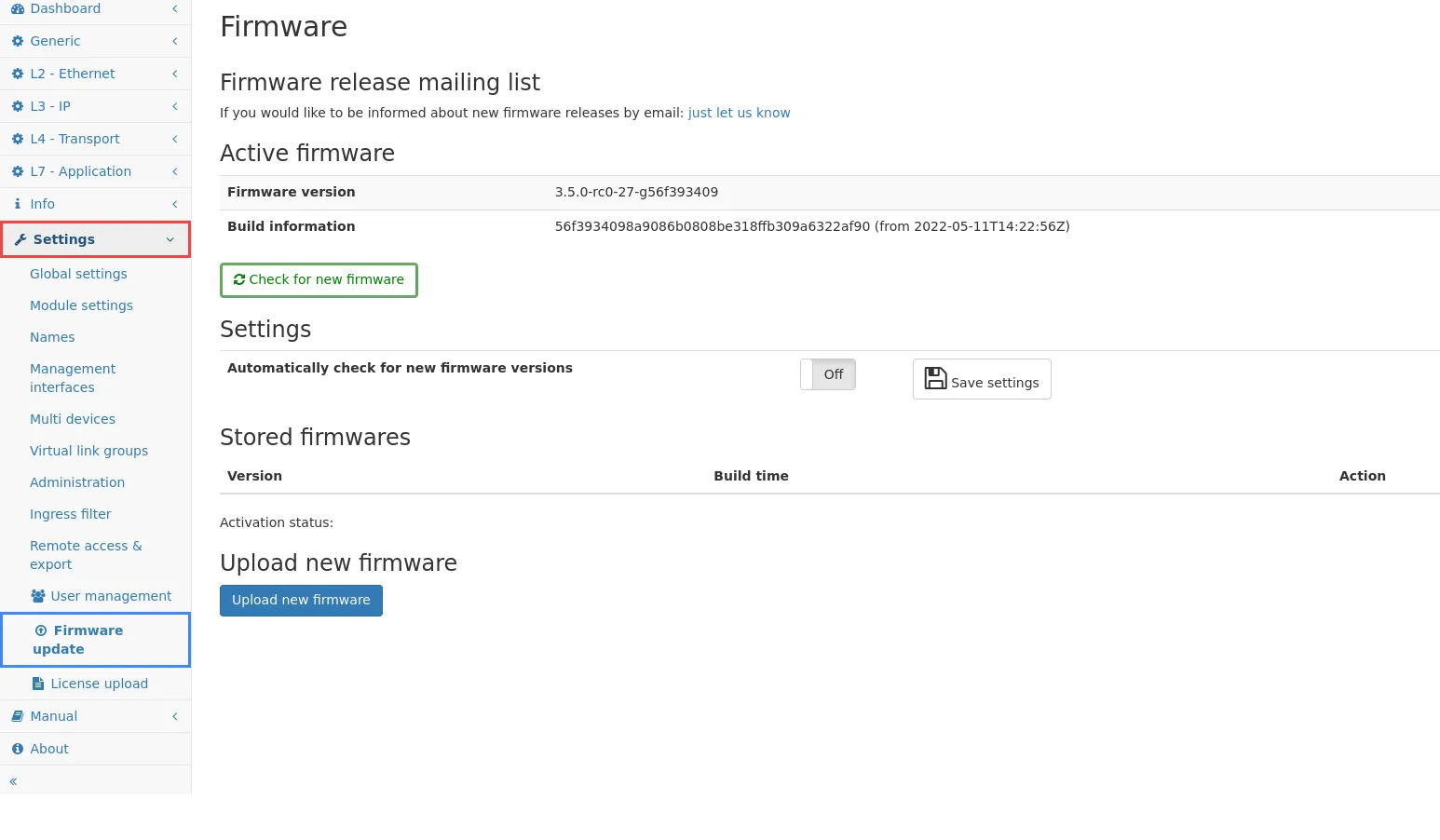
New firmware versions can be uploaded to the device either manually or automatically via our online service. In any case, a firmware version is never activated automatically but must be activated manually, since this step will temporarily stop the measurement.
If the device has got Internet access, it is possible to check for new firmware versions and load them automatically to the device.
- Go to Settings → Firmware update.
- Click the Check for new Firmware button.
- A dialog will indicate if a new firmware is available, and if so, the changes will be shown.
- After confirmation, the firmware will be loaded onto the device but not yet activated.
Automatically check for new firmware versions
Section titled “Automatically check for new firmware versions”This setting allows for checking for new firmware versions once per day. If a new firmware version is available, a dialog will pop up and allow for downloading it.
Manual upload
Section titled “Manual upload”With each release, Allegro Packets will send you an e-mail with Release notes and a link to download the update. If you wish to be added to this mailing list, please send us an e-mail with the Allegro Network Multimeter serial number to support@allegro-packets.com with the subject Release. You will find the serial number via the web interface under Info → System info as System ID. A link to unsubscribe from the mailing list is included in every e-mail.
The release e-mail will contain a download link for the firmware image and the release notes.
- Go to Settings → Firmware update.
- Click the Upload new Firmware button and select the firmware file (ending with .bin) from your computer.
- The firmware will be loaded onto the device but not yet activated.
Activate firmware versions
Section titled “Activate firmware versions”The firmware activation will stop any current packet processing and clear all measured data. The new firmware will be installed and started. All settings will remain active.
- Go to Settings → Firmware update.
- In the section Stored firmwares a list of up to 3 firmware versions is displayed.
- You can delete any version manually but the oldest one will be removed automatically once a new firmware version is uploaded to the device.
- Click on the Activate this Firmware button to start the installation process.
- The firmware activation can take up to 2 minutes. A confirmation dialog should show that the new version has been successfully installed.
- In rare cases, the web browser may lose connection to the web interface so no confirmation dialog appears, or an error is shown. In this case, try reloading the web page and check the active firmware version shown at the beginning of the page.
- If the firmware activation fails, follow the instructions to report a bug.
Available hardware updates
Section titled “Available hardware updates”In some cases an update of base hardware firmware may become necessary or is recommended. If such an update is available for hardware in the device, the Available hardware updates section is shown with a description of the update and a Run hardware update button. Clicking this button shows a dialog with important update information and confirming this dialog will run the update. In general, the device will interrupt normal operation for the duration of the update. It is important that the device is not powered off while the update is in progress.