
IPMI KVM on Allegro series 1000+
Many Allegro Network Multimeters come with an on-board IPMI interface for basic hardware management.
This interface can be used to start, reboot, or shutdown the device without accessing the web interface. You can also access a virtual monitor to view the output on the console and use a virtual keyboard to interact with the device (KVM: keyboard, video, mouse). This can be helpful for Performing a factory reset or configuration reset.
The following table shows if the device supports IPMI and where the IPMI KVM port is located:
| Device type | IPMI support | Port location |
|---|---|---|
| Allegro 200 | no | |
| Allegro 500 | no | |
Allegro 800-P Allegro 1000 Allegro 3000 | yes | 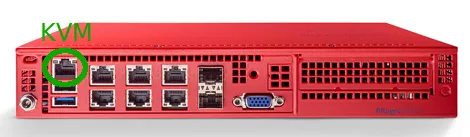 |
Allegro 810 Allegro 1010 Allegro 3010 | yes | 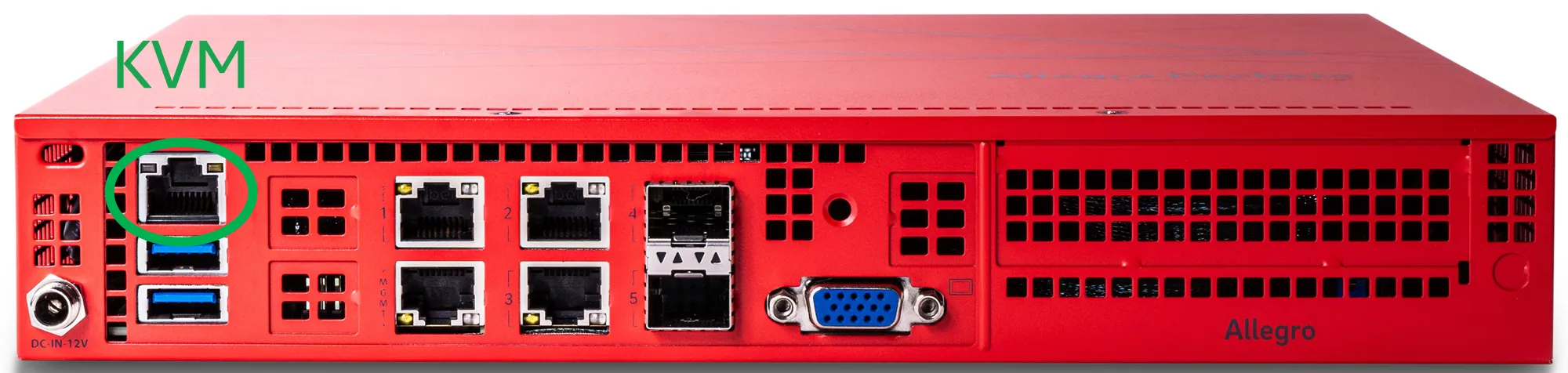 |
Allegro 800-RM Allegro 1200 Allegro 3200 | yes |  |
Allegro 1210 Allegro 3210 Allegro 5210 | yes |  |
Allegro 1300 Allegro 3300 Allegro 5300 | yes |  |
Allegro 1310 Allegro 3310 Allegro 5310 Allegro 7310 | yes | 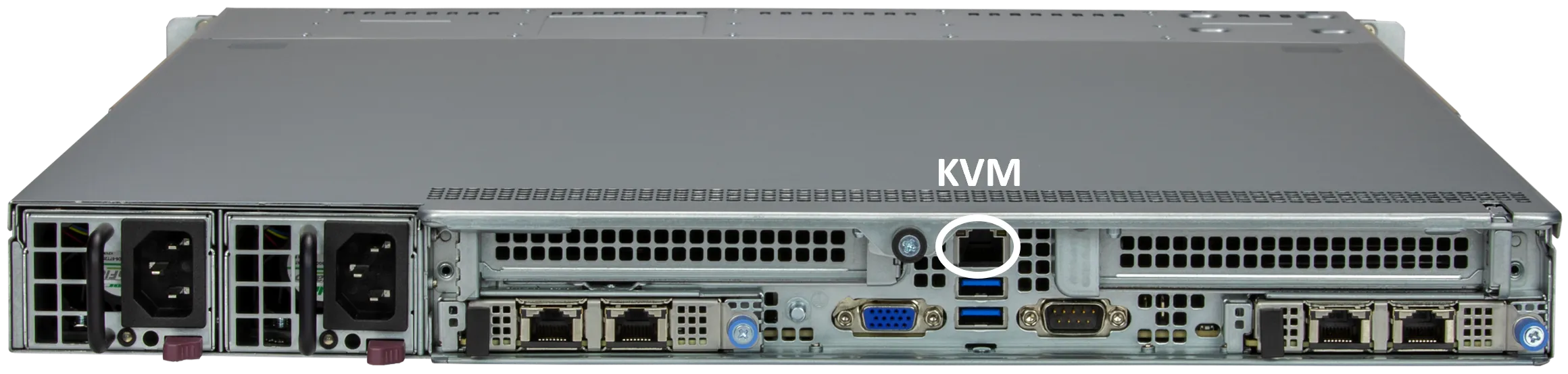 |
Allegro 1400 Allegro 3400 Allegro 5400 | yes | 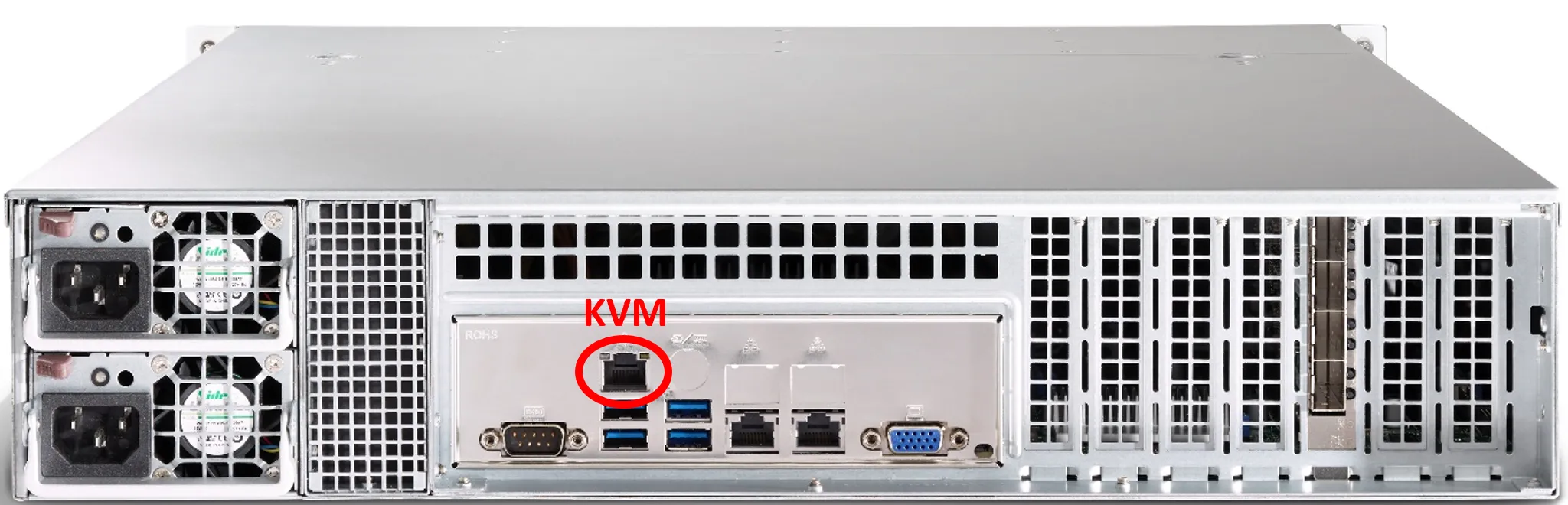 |
Allegro 1410 Allegro 3410 Allegro 5410 Allegro 7410 | yes | 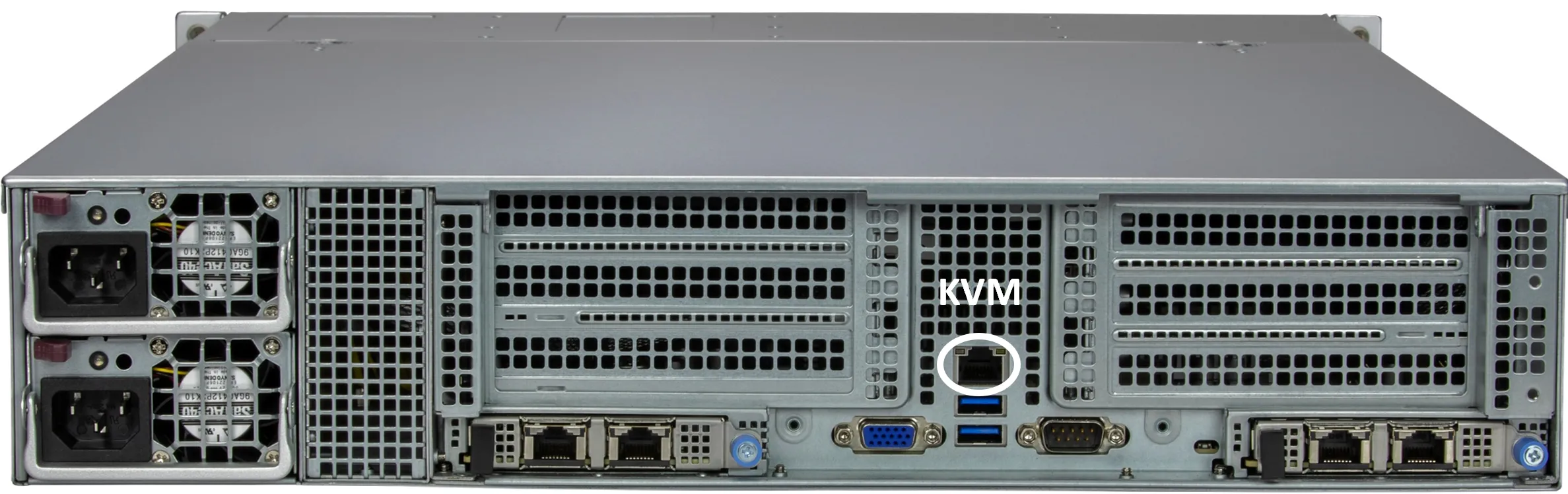 |
Allegro 1500 Allegro 1510 Allegro 3500 Allegro 3510 Allegro 5500 Allegro 5510 Allegro 7510 | yes | 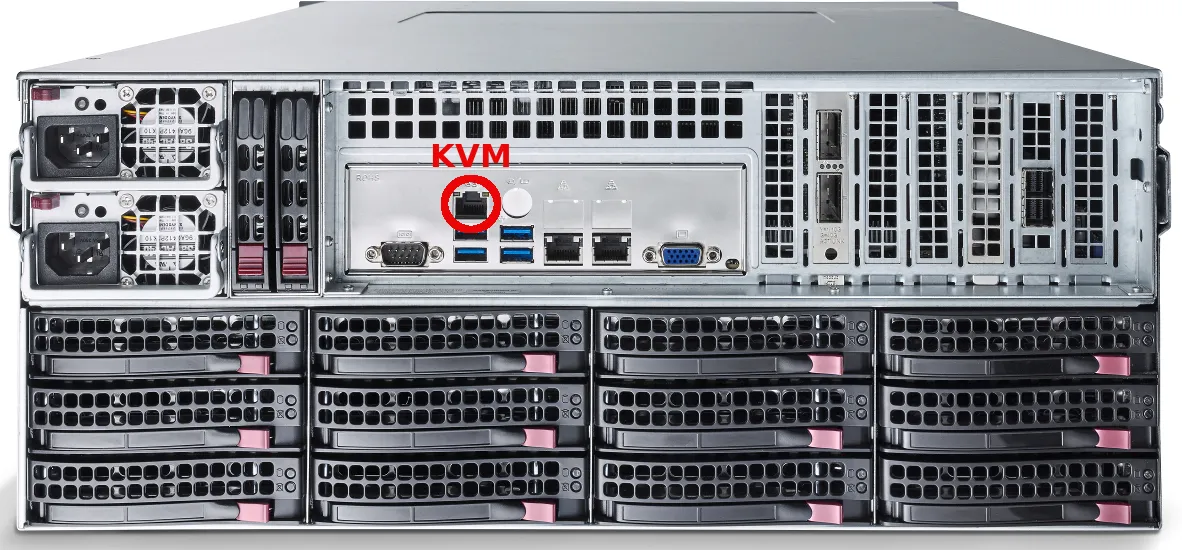 |
The IPMI interface can be accessed via a LAN using the very top-left Ethernet port, usually above the USB ports. By default, the port will obtain an IP address via DHCP, but it can be reconfigured within the IPMI web interface.
If you point a browser to that IP address, a SuperMicro login will be presented where you can log into the interface:
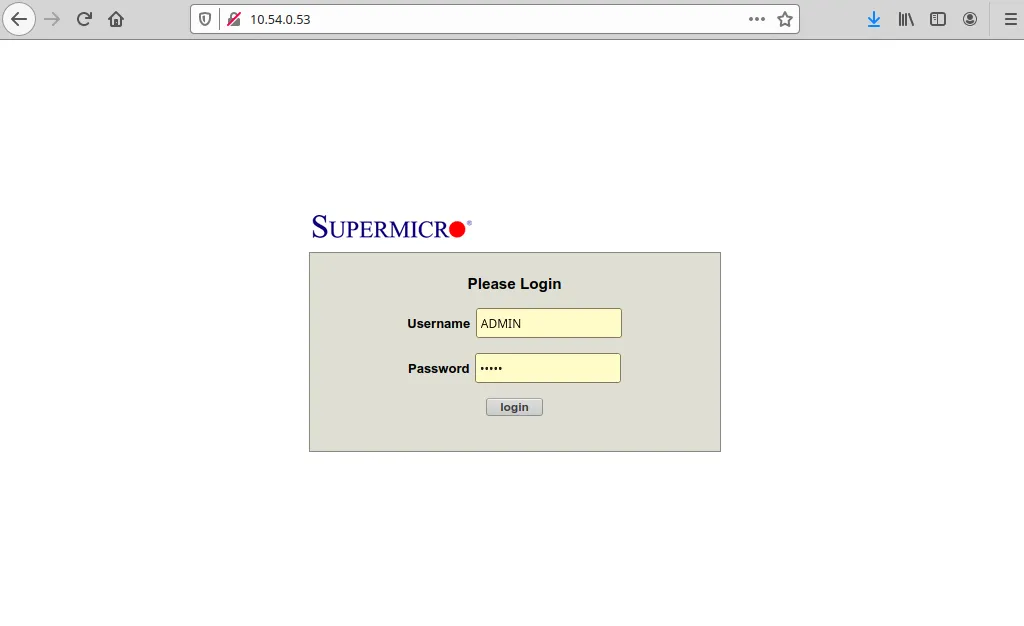
The default credentials are ADMIN/ADMIN but some newer devices come with a random password printed on the serial number sticker. On Allegro x300 series, the password is printed below a retractable plastic plate on top of the top-left 2.5 inch disk drive bay.
We recommend to change the default password into a secure one.
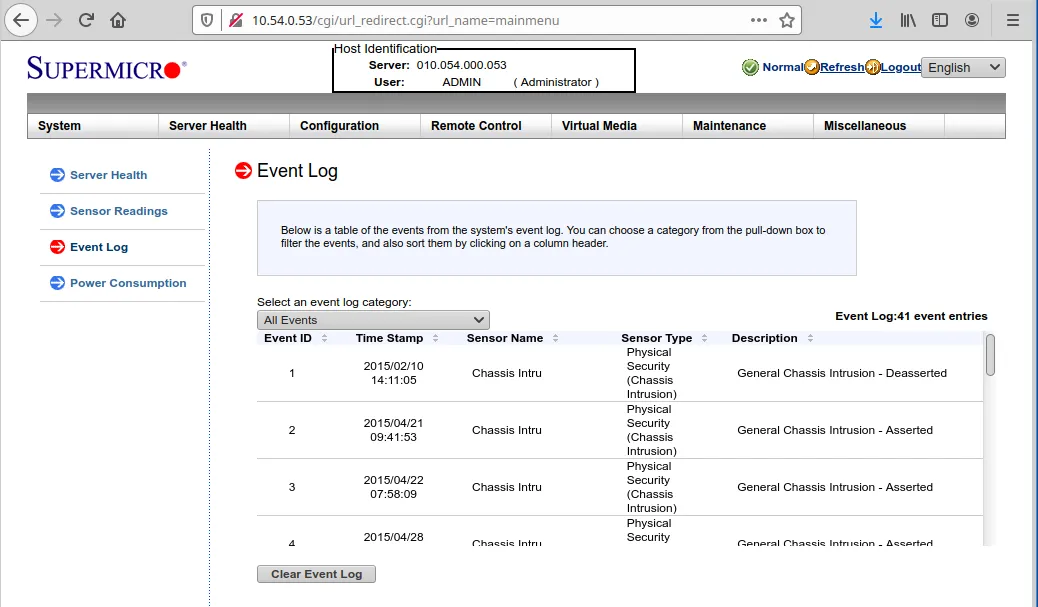
Access to Health event log
Section titled “Access to Health event log”There is an event log which shows all system health related events. In case of hardware problems, this can be useful to check.
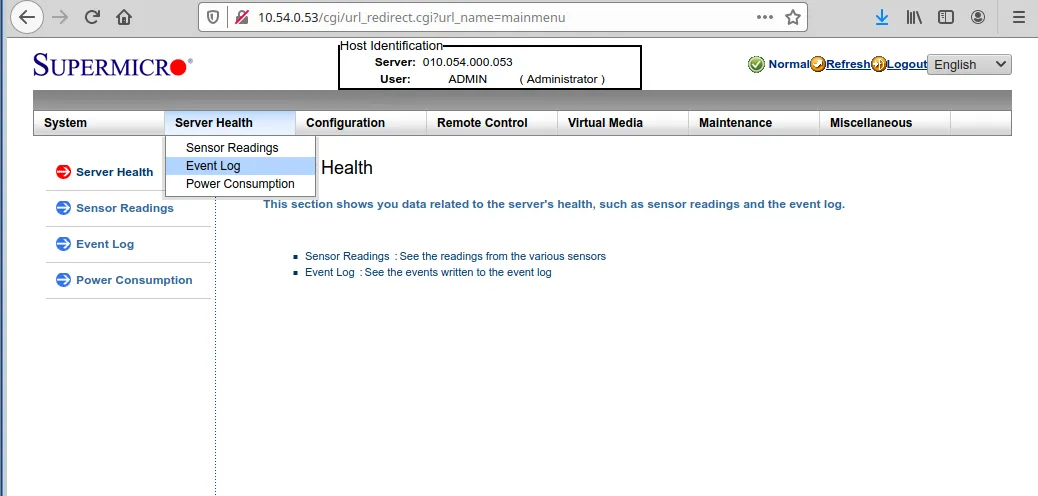
Virtual console
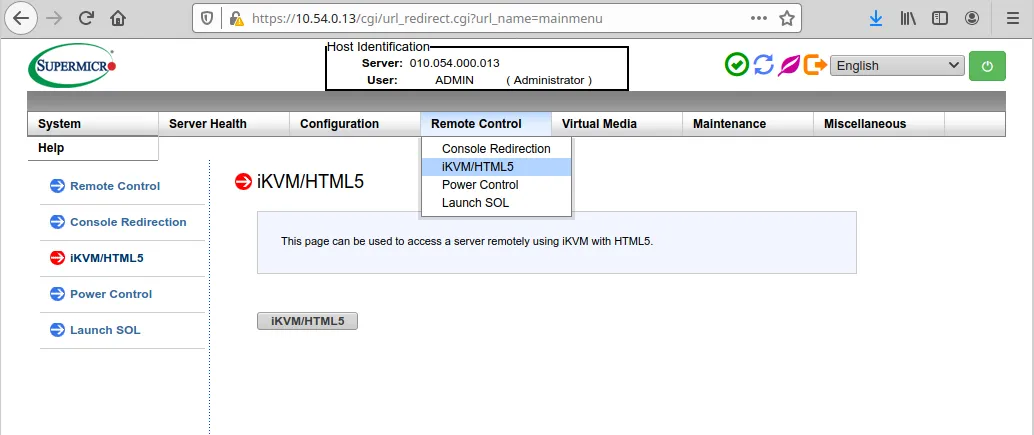
Section titled “Virtual console”The IPMI interface also allows to use a virtual console to see the monitor output and use a keyboard for input. This is useful when boot changes must be made, for example, a factory reset is required. It also allows to make screenshots from the boot process in case of problems.
Additional information
Section titled “Additional information”Please refer to the official documentation for more information.