
WiFi module
This module analyses IEEE 802.11 frames either acquired using the WiFi monitoring feature (see WiFi interface settings) or encapsulated in special packets (www.wireshark.org/docs/dfref/p/peekremote). It also provides statistics when analyzing PCAPs with a Radiotap link type and IEEE 802.11 packets.
Statistics
Section titled “Statistics”Channel statistics
Section titled “Channel statistics”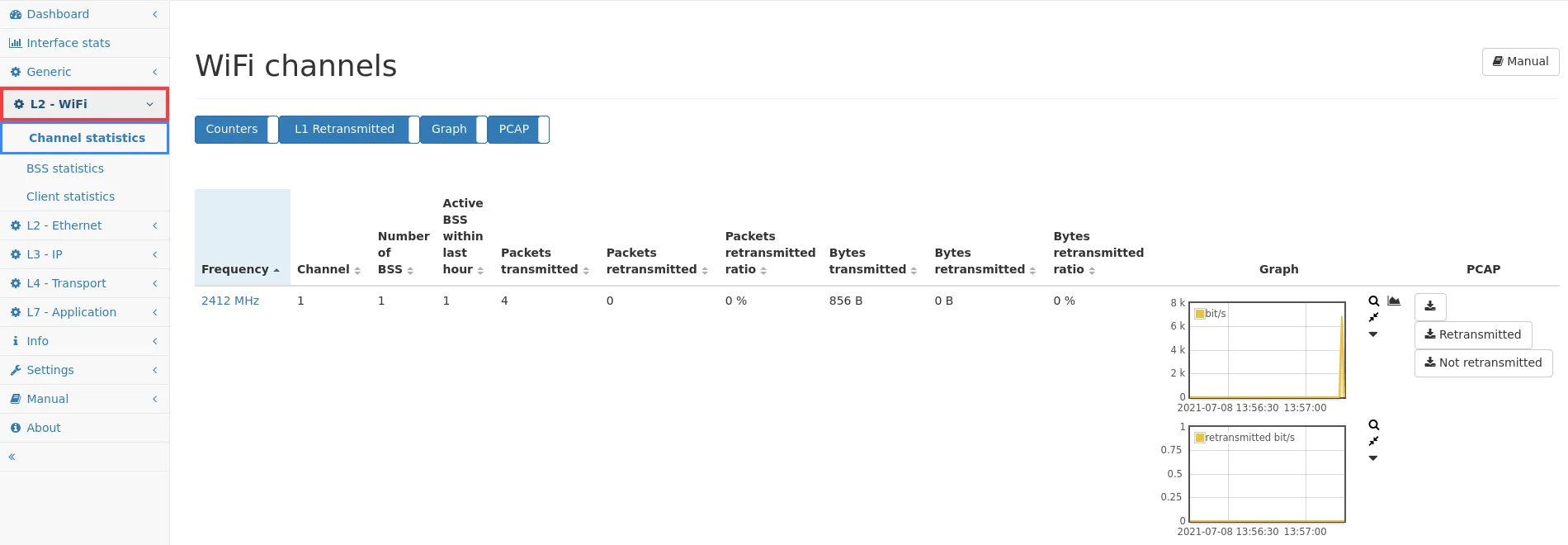
This page shows a list of all WiFi channels on which traffic is seen and offers the ability to capture the traffic of each channel. The table contains the following data:
- Frequency: The frequency of the channel in MHz. This uniquely identifies a channel as the channel numbers themselves are ambiguous.
- Channel: The channel number. These numbers are ambiguous as there exists a channel 1 in the 2.4GHz range as well as in the 5GHz range.
- Number of BSS: The number of BSS active on this channel.
- Active BSS within the last hour: The number of BSS that were active on this channel during the last hour.
- Packets: The number of packets seen on this channel.
- Packets retransmitted: The number of retransmitted packets seen on this channel. (firmware >= 4.2)
- Bytes: The number of bytes seen on this channel.
- Bytes retransmitted: The number of retransmitted bytes seen on this channel. (firmware >= 4.2)
- Graph: Multigraph selection that can show packet rate and data rate history.
- PCAP: Download all/only retransmitted/not retransmitted packets of the channel
The channel frequency can be clicked on to get a list of BSS in that specific channel. This table contains the same information as the global table in the BSS statistics.
BSS statistics
Section titled “BSS statistics”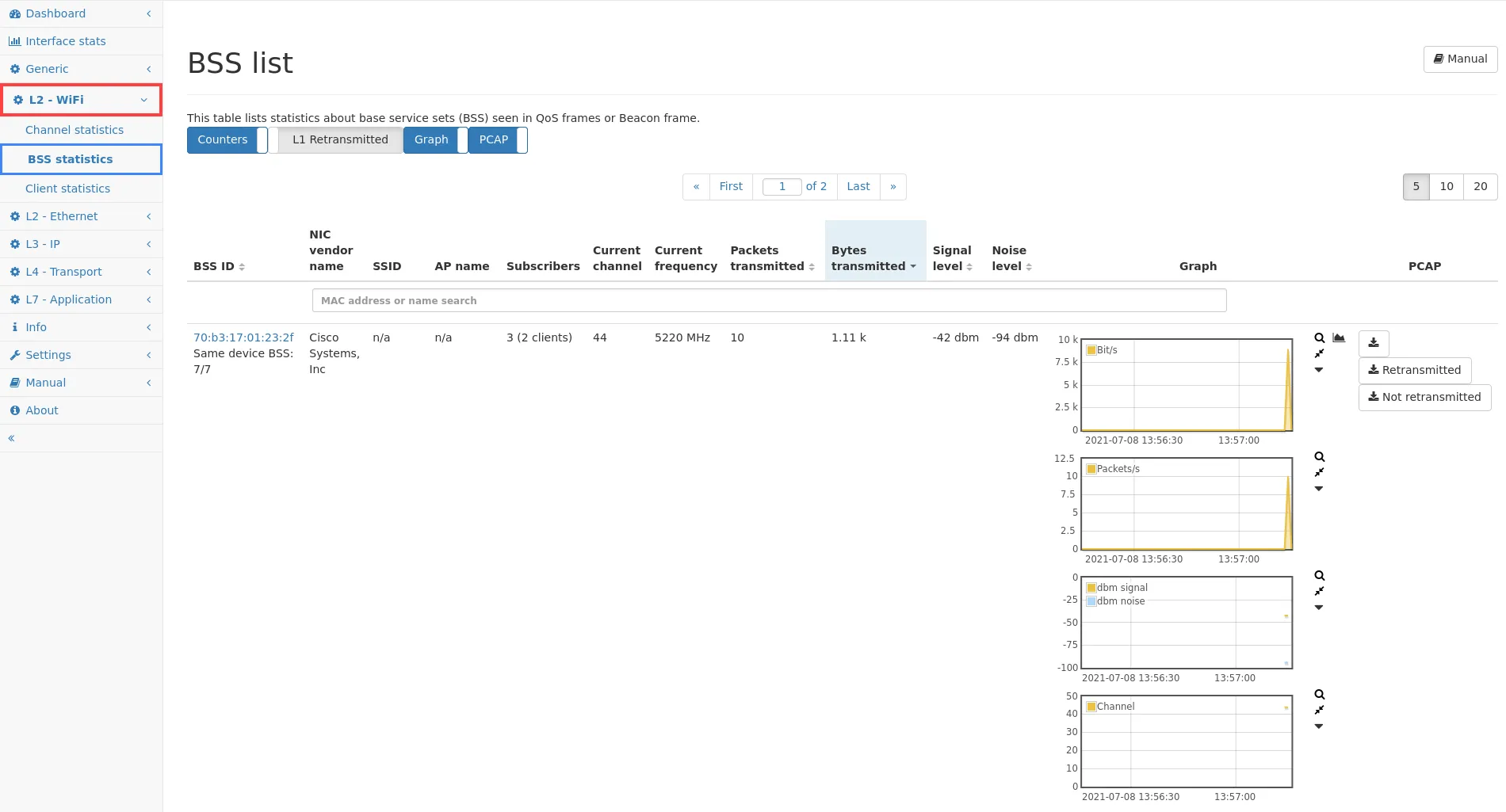
The table shown on this page lists all Base Service Sets (BSS) which are usually the access points, and offers the ability to capture the traffic of each BSS.
The table contains the following data:
-
BSS ID: This is the MAC address of the station.
- Same device BSS: The number of other BSS IDs of the same device, based on their MAC addresses. When following the link to the BSS detail page, the other BSS are listed on that page.
-
NIC vendor name: This is the vendor name of the MAC address.
-
SSID: When available, the SSID is shown for this BSS.
-
AP name: When available, the AP name is shown.
Note: The AP name is a Cisco specific extension of beacon frame attributes and therefore only available for specific devices.
-
Subscribers: This column shows the number of MAC addresses communicating from or to this BSS.
- The number of clients in parentheses are the number of unicast addresses different than the BSS MAC address.
- The actual subscribers can be seen in the BSS detail page.
-
Current channel: This is the channel the BSS is currently operating on.
-
Current frequency: This is the frequency the BSS is currently operating on.
-
Packets transmitted: This is the number of packets that have been analyzed for this BSS. (firmware >= 4.2)
-
Packets retransmitted: This is the number of retransmitted packets that have been analyzed for this BSS. (firmware >= 4.2)
-
Packets retransmitted ratio: This is the proportion of retransmitted packets that have been analyzed for this BSS. (firmware >= 4.2)
-
Bytes transmitted: This is the number of bytes that have been analyzed for this BSS.
-
Bytes retransmitted: This is the number of retransmitted bytes that have been analyzed for this BSS. (firmware >= 4.2)
-
Bytes retransmitted ratio: This is the proportion of retransmitted bytes that have been analyzed for this BSS. (firmware >= 4.2)
-
Signal/noise level: These values indicate the signal quality of the BSS. It uses information from packets sent from or to the BSS to give an indication about the overall quality.
-
Graph: Multigraph selection for detailed information over time:
- Traffic (bit/s): This is the bitrate seen over time.
- Traffic (packets/s): This is the frame rate seen over time.
- Traffic retransmitted (bit/s): This is the rate of retransmitted bits seen over time. (firmware >= 4.2)
- Traffic retransmitted (packets/s): This is the rate of retransmitted frames seen over time. (firmware >= 4.2)
- Signal: The signal and noise level over time in dbm.
- Channel: This is the channel used at any given time.
-
PCAP: Download all/only retransmitted/not retransmitted packets of the BSS.
Client statistics
Section titled “Client statistics”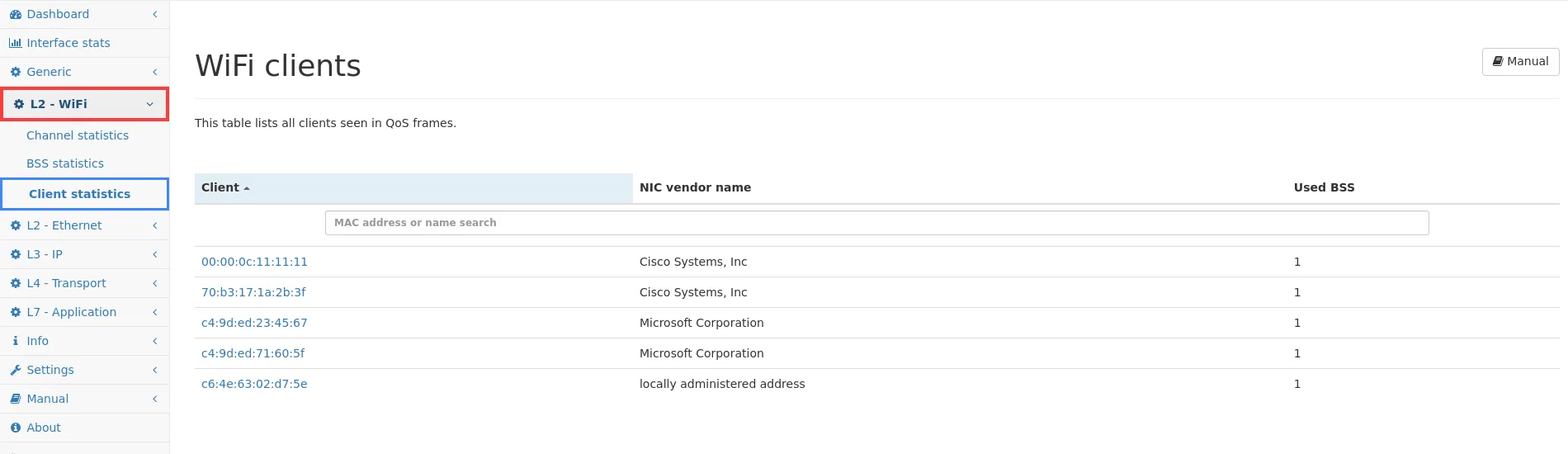
This page shows all client devices (unicast devices other than BSS) that have been seen in QoS and beacon frame. The table shows the client MAC address, its vendor name and in how many BSSs this client was active.
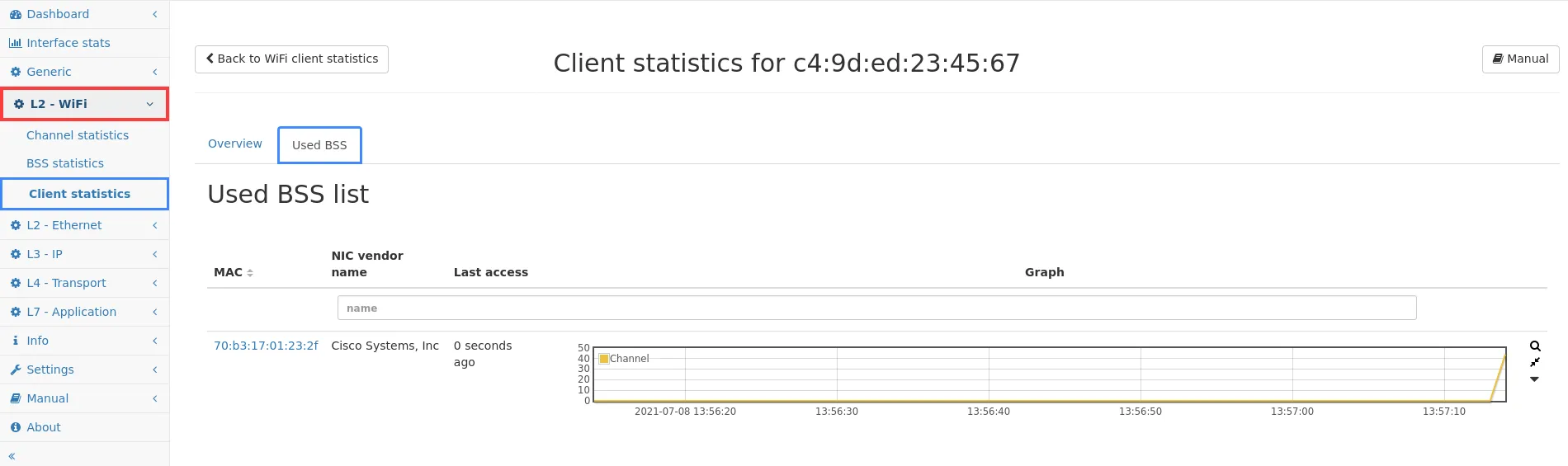
When clicking on the client address, a detailed page is shown. The Used BSS tab shows which BSS were actually used at which time, so it is possible to identify how often a client switched access points.
Per-BSS statistics
Section titled “Per-BSS statistics”For each BSS MAC address, more detailed information can be shown by clicking on the MAC address in the BSS list.
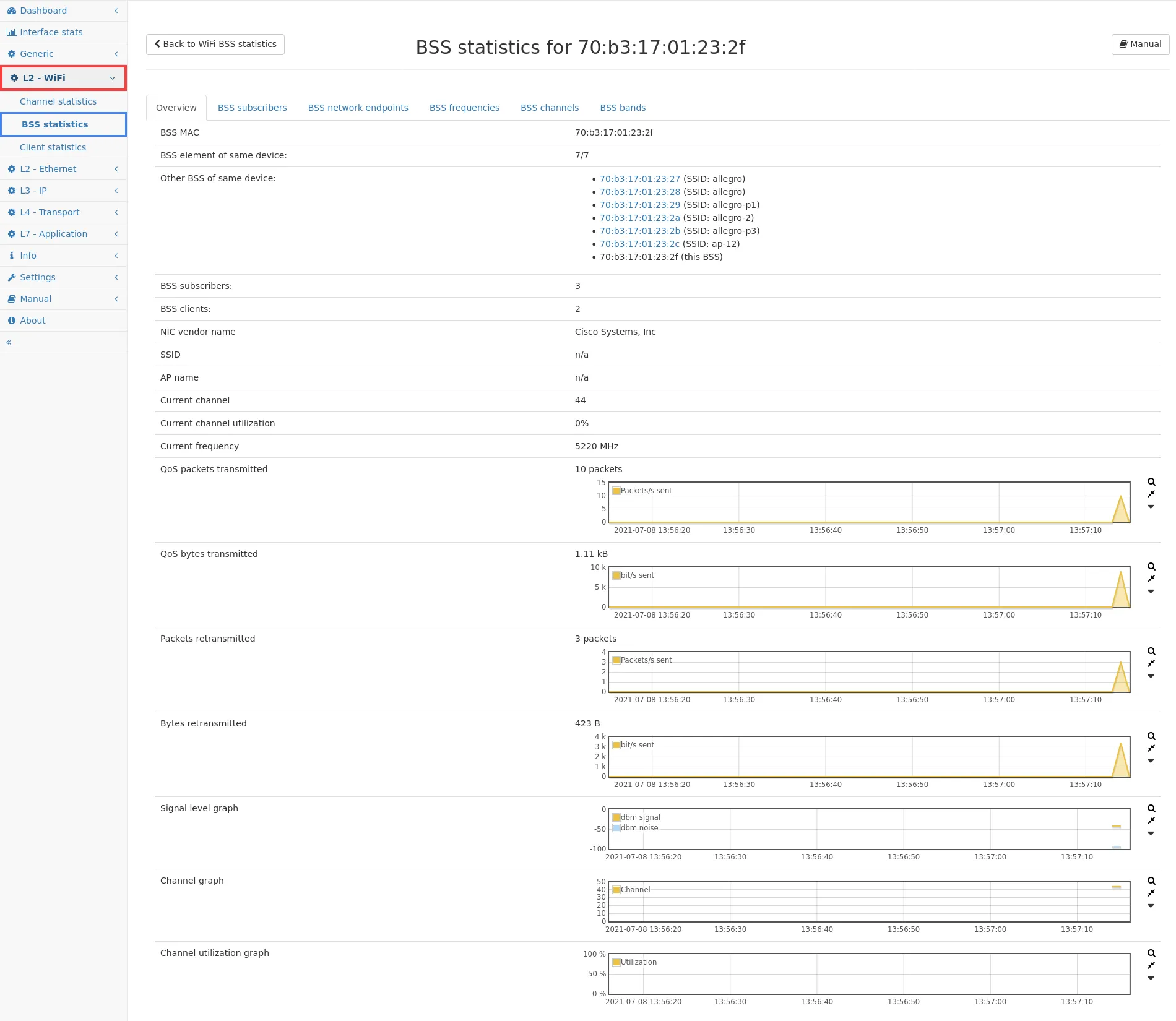
The detail page shows an overview for this BSS ID and contains additional tabs for the list of subscribers and network endpoints of that base service set, as well as the list of frequencies, channels, and bands used by this base service set.
The Overview tab shows all information from the BSS table and also all MAC addresses of other BSS that are handled by the same physical device.
BSS-Client details
Section titled “BSS-Client details”In the BSS subscribers list on the BSS details page, information for each subscriber in the BSS is shown. A subscriber is any MAC that has sent a unicast frame to the BSS. This table contains a Handshakes seen column which displays the number of handshakes a client has attempted with the BSS. Clicking on the Details link leads to a new details page for the BSS/Client pair.
BSS/client pair details
Section titled “BSS/client pair details”This page displays information about the client profile and the most recent handshake.
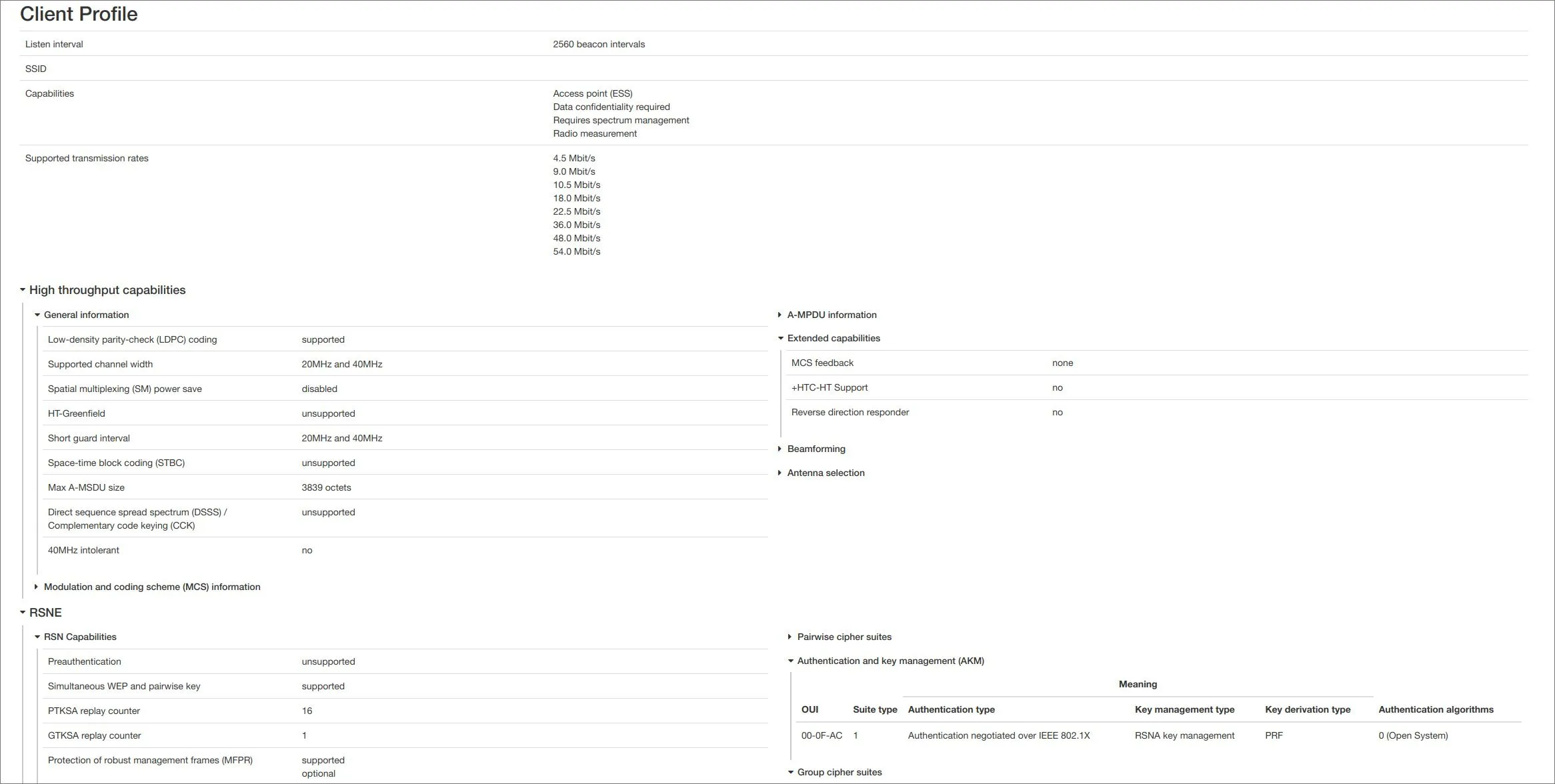
Client profile
Section titled “Client profile”The Client profile contains the decoded data transmitted by the client in a (re)association request frame. It contains information about the capabilities of the client (this includes supported operating frequencies, power saving mechanisms, cryptographic ciphers, beamforming information, etc). Each category is collapsible by clicking on the title text, and some of the categories are collapsed by default.
Handshake
Section titled “Handshake”The Handshake tab displays the most recently seen handshake (successful or not) as a flowchart diagram. The page consists of the diagram on the left side, and a details panel on the right side. Clicking on an element in the flowchart will populate the details panel with additional information about the frame (if available). To the left of the flowchart there are timestamps (in absolute and relative format) showing when a frame was sent.
The handshake analysis also evaluates the correctness of the handshake. If a frame does not adhere to the IEEE802.11 specification (for example the client sends an association request before authenticating with the BSS) or a frame contains invalid information, these frames will be marked as invalid. Frames that are technically allowed but unexpected at the current stage of the handshake (for example spurious probe requests after association) are marked as dubious. Dubious frames are unproblematic under normal circumstances. An invalid frame might be an indicator of a misconfigured WiFi device or poor signal quality at the Allegro Multimeter’s location. Incident rules can be created to trigger when invalid handshake frames are seen, or when a handshake fails (for whatever reason).
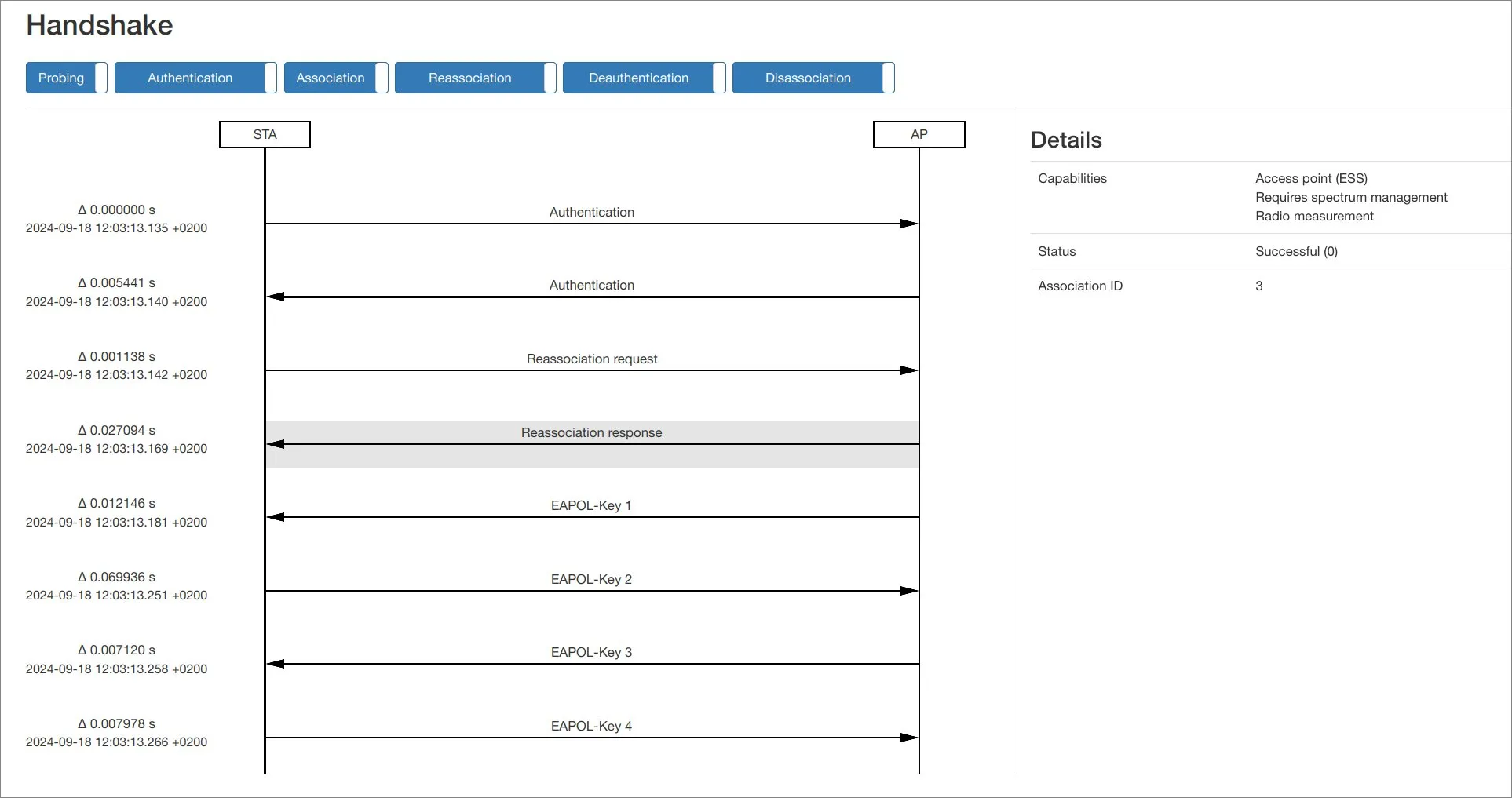
The following details are displayed in the details panel:
-
Authentication:
- Authentication algorithm: The algorithm used for authentication with the BSS. Usually Open System indicates WPA2, and SAE indicates WPA3.
- Sequence number: The current step in the authentication process.
- Status: The status code of the authentication.
-
(Re)association response:
- Capabilities: A list of capabilities the responder has. This is an overview of the client profile of the responder.
- Status: The status code of the association.
- Association ID: An ID given to the client by the BSS, used in future reassociations.
-
Deauthentication/Disassociation:
- Reason: A code describing the reason why the client (was) deauthenticated/disassociated.
-
EAPOL-Key:
- Descriptor version: Describes the cryptographic authentication and key management mechanism used in the handshake.
- Key type: Whether this frame is part of the 4-way handshake.
- Install: Whether the client shall install the key derived from this frame.
- Key Ack: Whether the client needs to respond to this frame.
- Key MIC: Whether or not this frame contains a MIC.
- Secure: Set to true once initial key exchange is complete (EAPOL-Key 3 and onwards).
- Error: Whether an error occurred during the handshake.
- Request: Set to true by the client when it requests the initiation of a handshake.
- Encrypted Key Data: Whether the key data in this frame is encrypted.
- Key length: Length of the temporal key.
- Key replay counter: Number of exchanges carried out during this handshake.
- Key nonce, IV, RSC, MIC: Cryptographic values used in the key derivation.
- Key data length: Length of the key data (0 means no key data is present).
- Key Data: Key Data.
Traffic processing
Section titled “Traffic processing”There are currently four kinds of 802.11 traffic that can be analyzed:
- Live packet processing of IEEE 802.11 packets acquired with the WiFi monitoring feature (see WiFi interface settings).
- Radiotap PCAP files that contain IEEE 802.11 packets.
- PEEKREMOTE packets. This kind of traffic is generated by access points and is sent via UDP to a specified IP address and port. To analyze this traffic, the endpoint mode has to be enabled on an interface which receives this traffic. In the endpoint mode configuration, an IP address and port can be configured for which the Allegro Network Multimeter accepts packets. PEEKREMOTE packets usually do not contain complete IP packets, only 802.11 statistics that are evaluated by the Allegro Network Multimeter.
- CAPWAP encapsulated packets. In contrast to PEEKREMOTE, CAPWAP packets encapsulate complete IP packets which themself contain 802.11 information. Therefore, the endpoint mode must be configured for a specific IP and port and the tunnel view mode must also be enabled to let the Allegro Network Multimeter look inside the encapsulated packets.