
Management interface settings on console
The management interface can be configured on the virtual console or on a connected monitor and keyboard. With a keyboard the user is able to edit the LAN and WiFi settings as in the web interface.
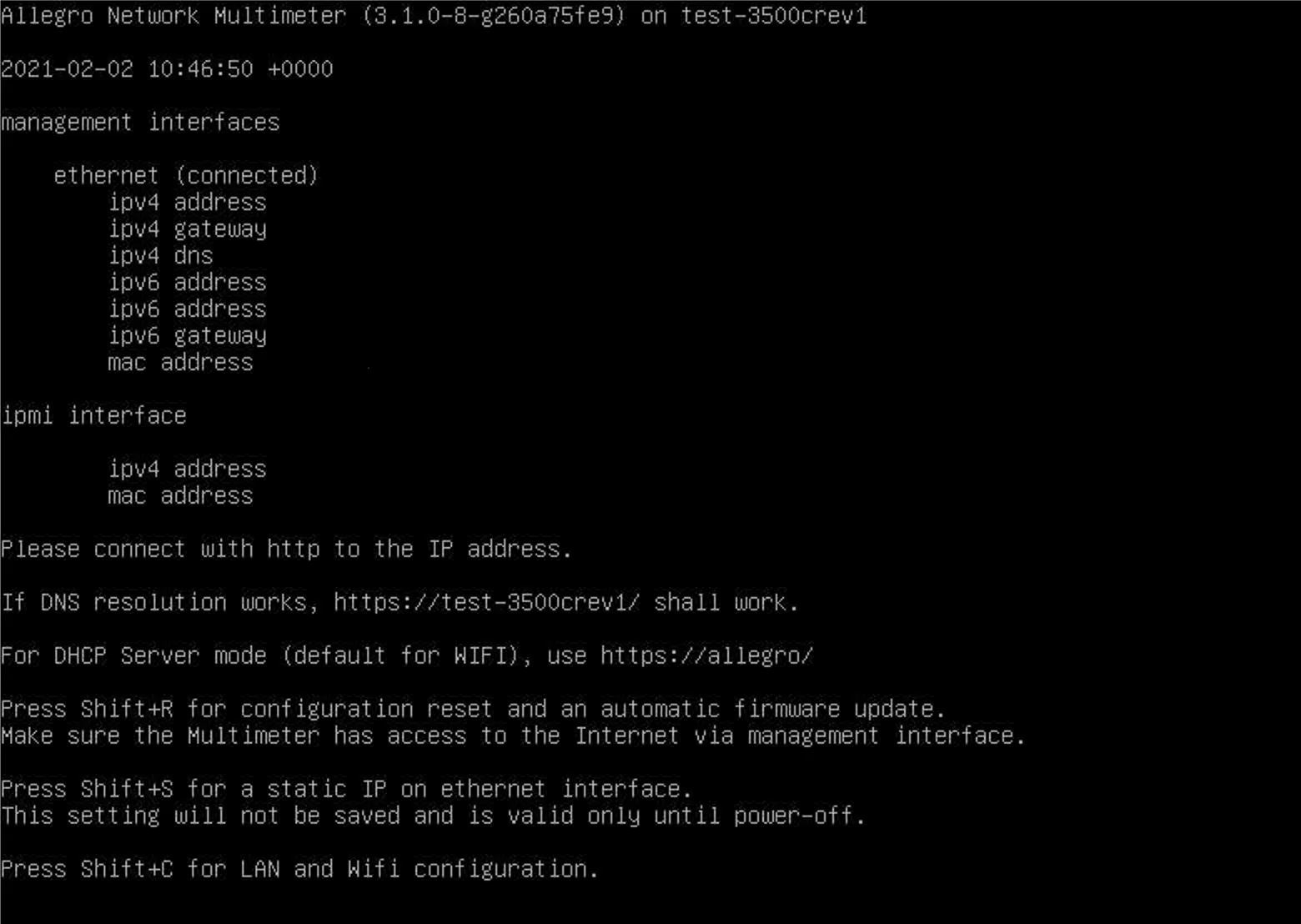
The configuration tool can be entered by pressing [Shift]+[C]. A new window opens. In case that the username and password of the device are not the default values, the user is asked to enter username and password to get access. The username and password will not be saved after quitting.
Navigation
Section titled “Navigation”There is a menu on the left to easily switch between LAN settings, WiFi settings, Save settings and Return with the [Up] and [Down] cursor keys. On the right a sub window opens referring to the selected menu item. To enter the LAN/WiFi settings the [Enter] key or the [Right] cursor key need to be pressed.
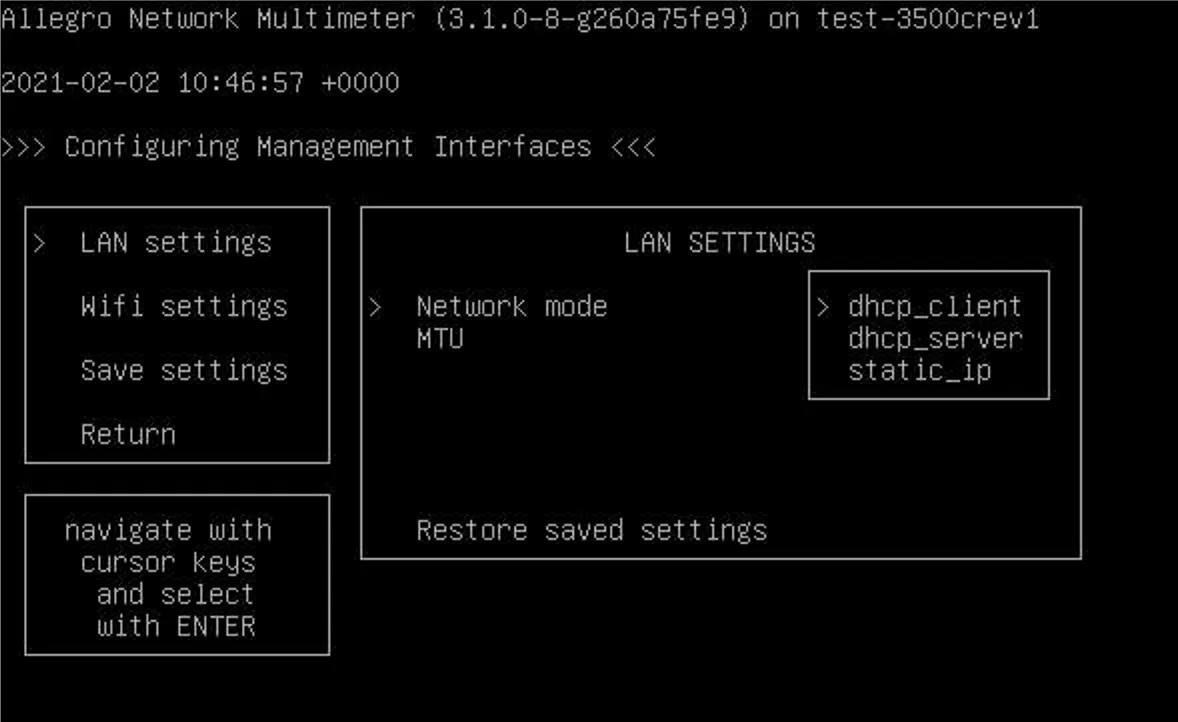
In order to edit a specific setting, press [Enter] and choose from a sub menu (network mode and channel) or use the keyboard to enter text input.
Use [ESC] or the [Left] cursor key to jump back a menu level.
Restore saved settings
Section titled “Restore saved settings”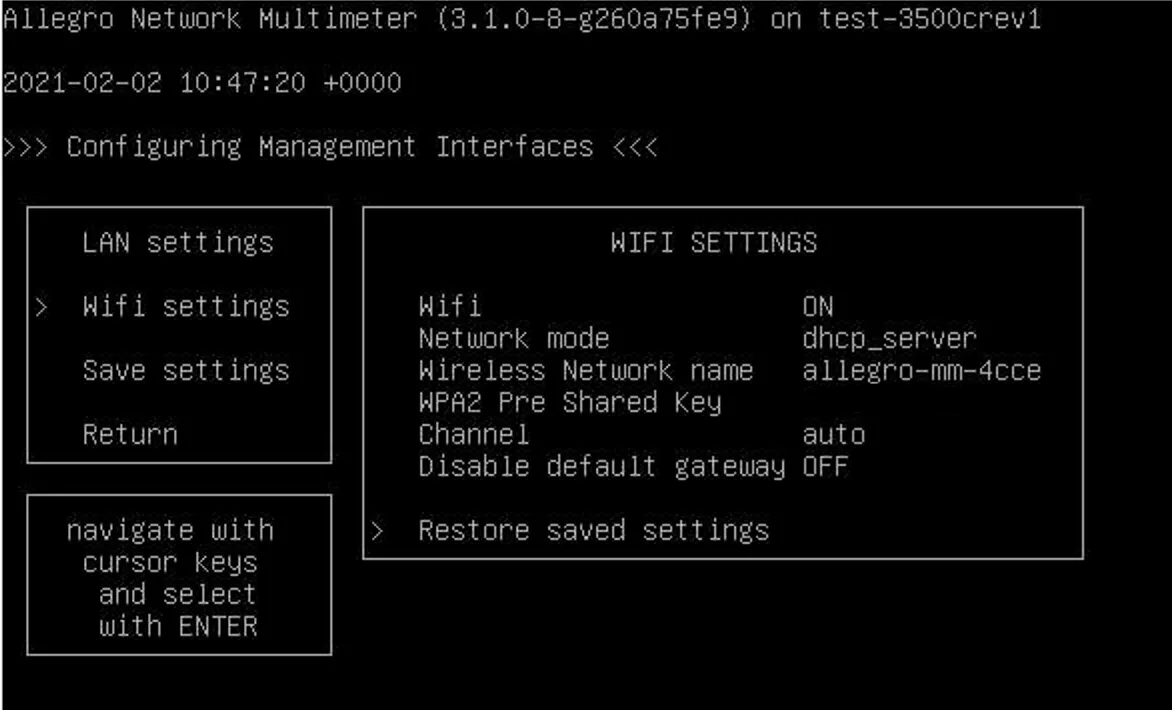
In some cases it is useful to go back to the last saved settings. Therefore a feature called Restore saved settings is implemented that discards all unsaved changes of the respective selected menu item.
Save settings
Section titled “Save settings”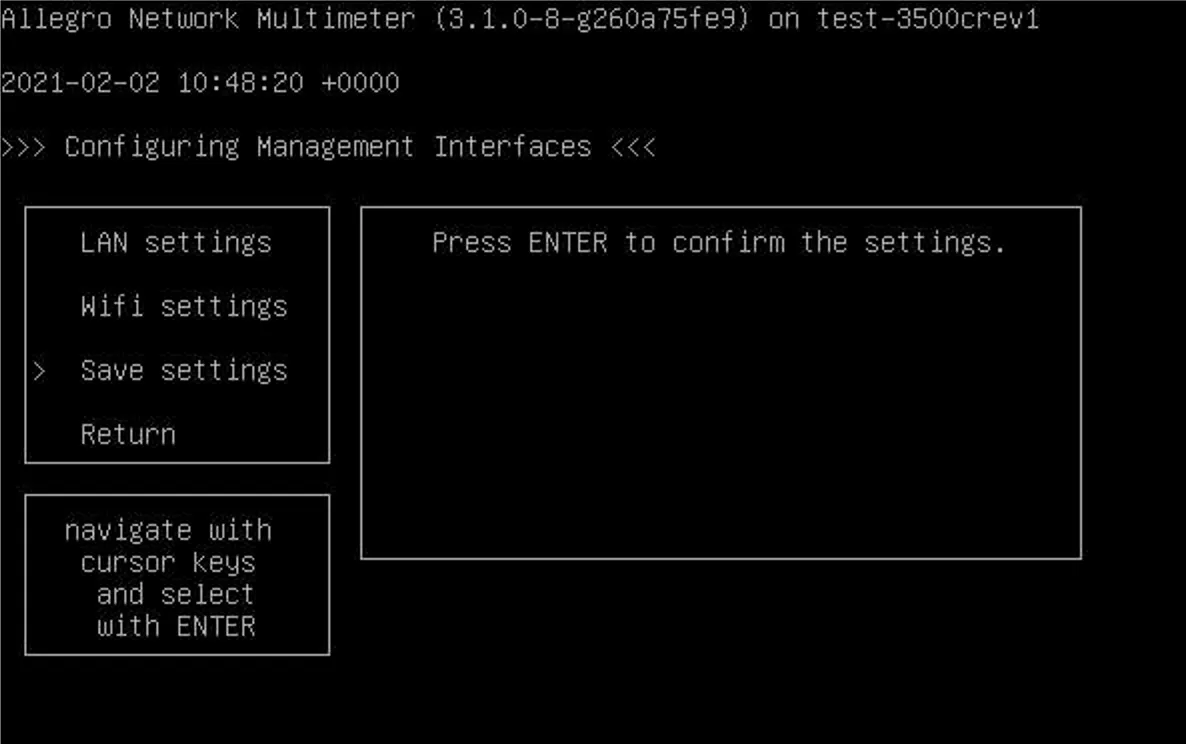
For the purpose of applying the changed settings, go to Save settings and press [Enter].
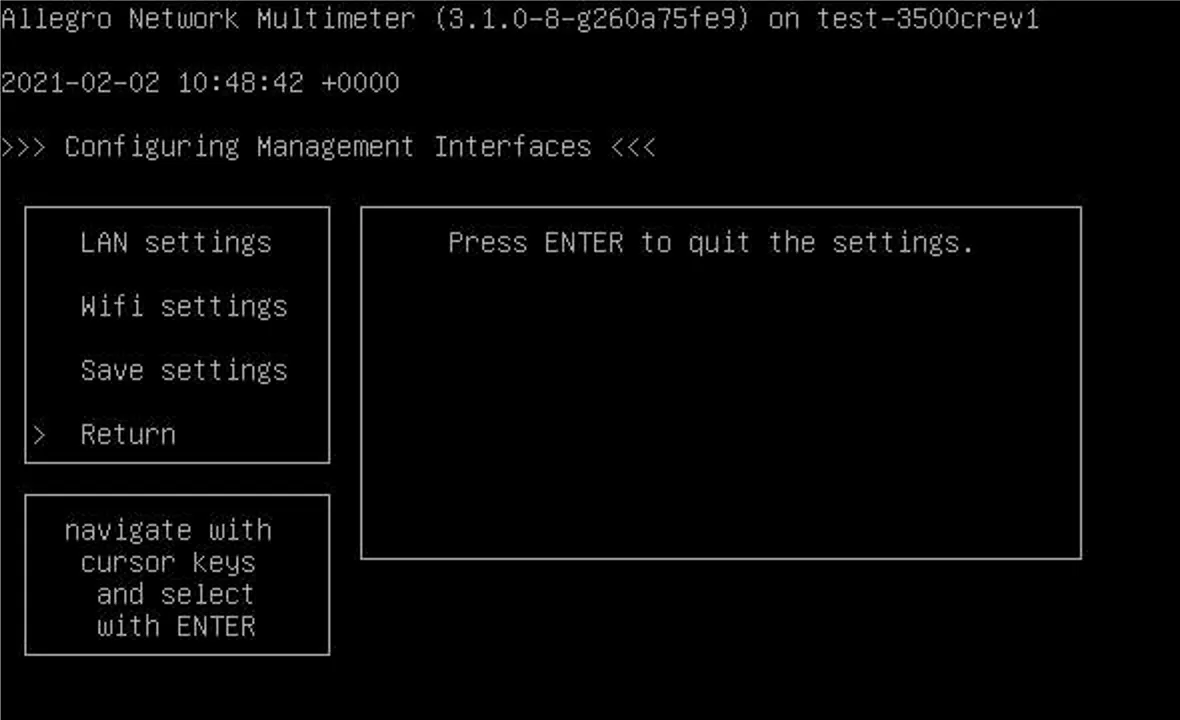
The configuration tool can easily be quit when navigating to Return and pressing [Enter]. Unsaved changes will be lost.