USB Presenter Capture
This page describes how the Allegro Network Multimeter allows a user to start a capture with a USB presenter. This capture can be actioned “Back in Time” for a defined period. In addition, the capture files can be uploaded to an SFTP server at a defined time.
This feature has been designed to allow non-IT staff to record/initiate PCAPs when an error occurs. It also allows for captures without opening a Web interface.
Use case example
Section titled “Use case example”An IT or VoIP service provider needs to troubleshoot intermittent issues at a (residential) customer. The service provider is limited by time, resources and packet capture/data collection constraints (AVG, GDPR).
With the Allegro Network Multimeter USB Capture trigger functionality, a simple remote control is handed to the customer, with the instruction to press any button when the issue arises. A simple button press on the remote will initiate a pre-configured capture (filter + duration) around the time of the incident, e.g. from 60s before until 60s after the button press.
As only packets around an issue are being recorded and saved as a PCAP, the service provider needs not sift through huge amounts of data for root-cause analysis. Also, there are little to no privacy implications, since the capture was end-customer initiated, pre-filtered and limited to short time-intervals only.
Requirements
Section titled “Requirements”This feature is supported by all Allegro Network Multimeters (also VM) from firmware release V3.0. As of now, the Logitech R400 is supported. Allegro will add more presenters on request. An optional USB sound device will play a beep when a key has been pressed. It requires a free USB 2.0 (or higher) port on the Allegro Network Multimeter. An internal or external disk needs to be configured at Generic → Storage and a ring buffer must be configured.
Please note that the capture initiated by this feature is extracted from the ring buffer, and ring buffer filter rules for packet slicing will affect exported PCAPs.
USB Capture Trigger Setup
Section titled “USB Capture Trigger Setup”Connect the Logitech R400 USB dongle to the Allegro Network Multimeter. If you have an Allegro Virtual Edition, please pass-through the USB device directly to the Allegro VM.
Once this is done, navigate to the Settings → Global settings → Expert settings page and go to the USB capture trigger section.
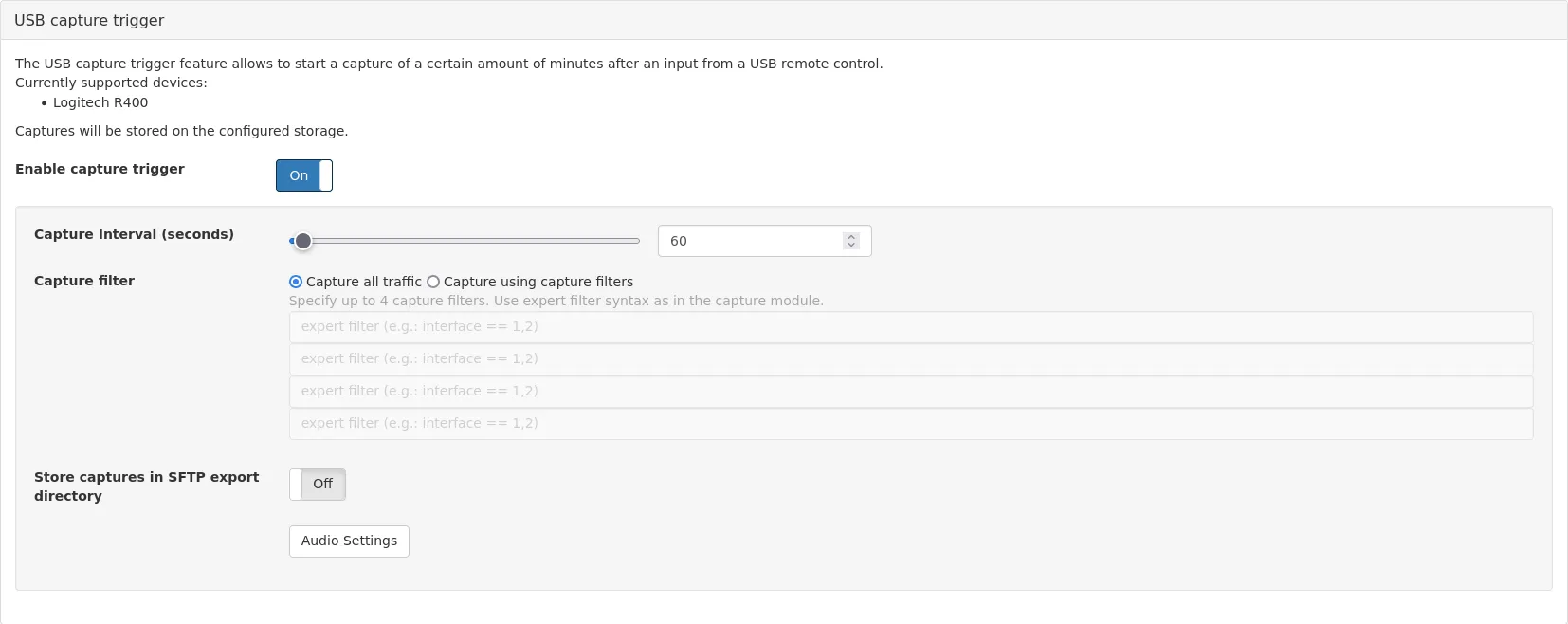
Whenever a key on the presenter is pressed, a PCAP will be generated.
NOTE! The PCAP end-time is when the button on the presenter is pressed and the start time is defined by the capture interval. This means, that a configured interval of 60 seconds, will generate a capture (PCAP) of the full 60 seconds prior to when a presenter key was pressed.
Captures are stored in the root directory of the storage partition or, if enabled, in the upload directory (queue) for periodic/automated SFTP uploads.
Since version 4.2 it is possible to configure the time that will be recorded before and after the button is pressed instead of just the time before.
SFTP Export Setup
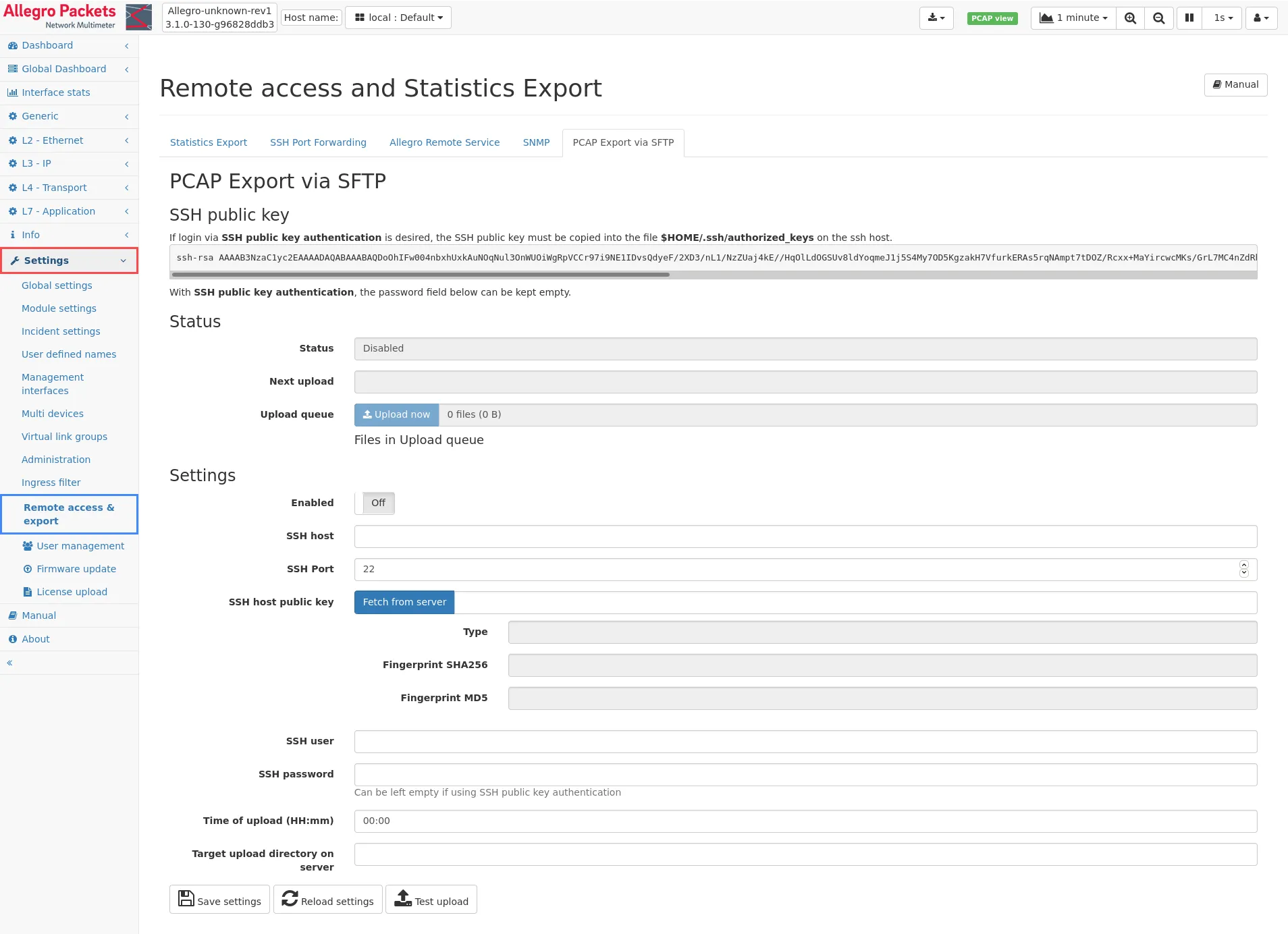
Section titled “SFTP Export Setup”The Allegro Network Multimeter can automatically upload PCAP files to an SFTP server from the upload directory on the disk. To configure it, please navigate to Settings → Remote Access and Export → PCAP export via SFTP.
This allows to export all captured PCAP files at a certain time of day. As example it can be used to transfer PCAPs during the night from remote locations to a central SFTP server.
Advanced Multi-PCAP Setup
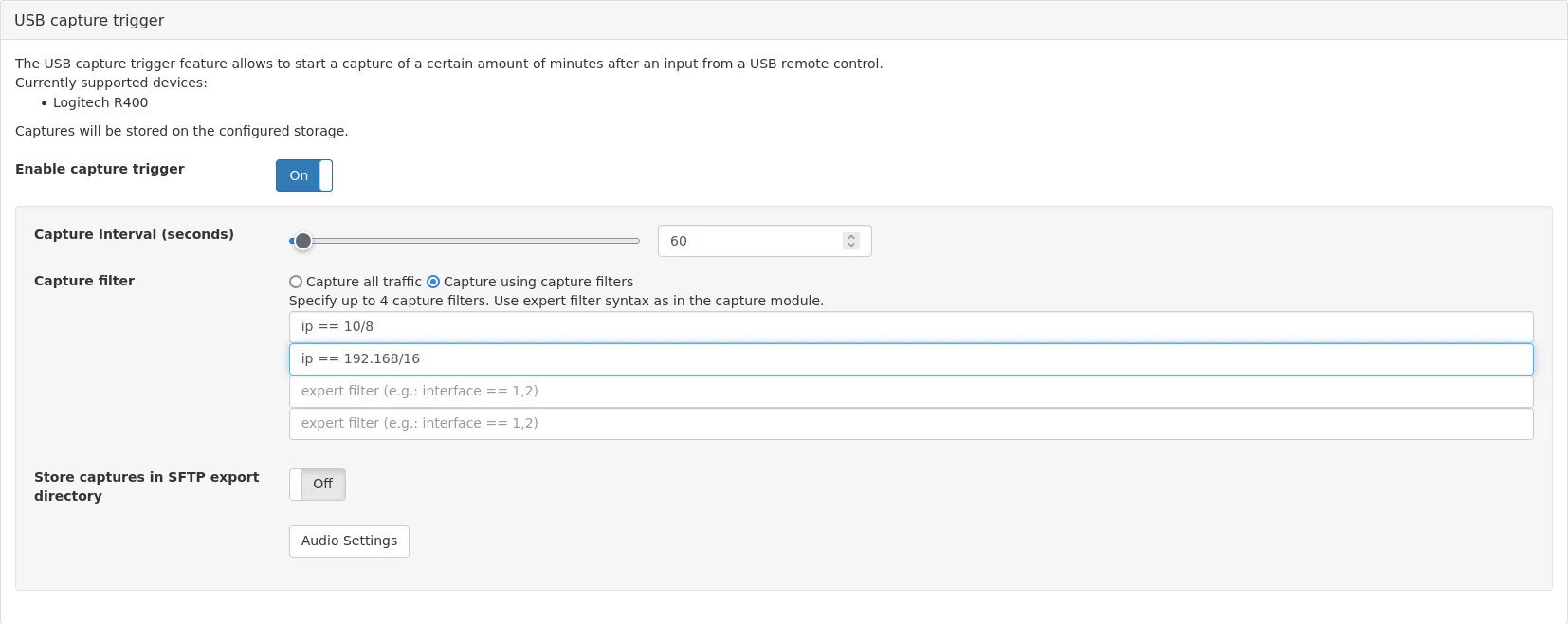
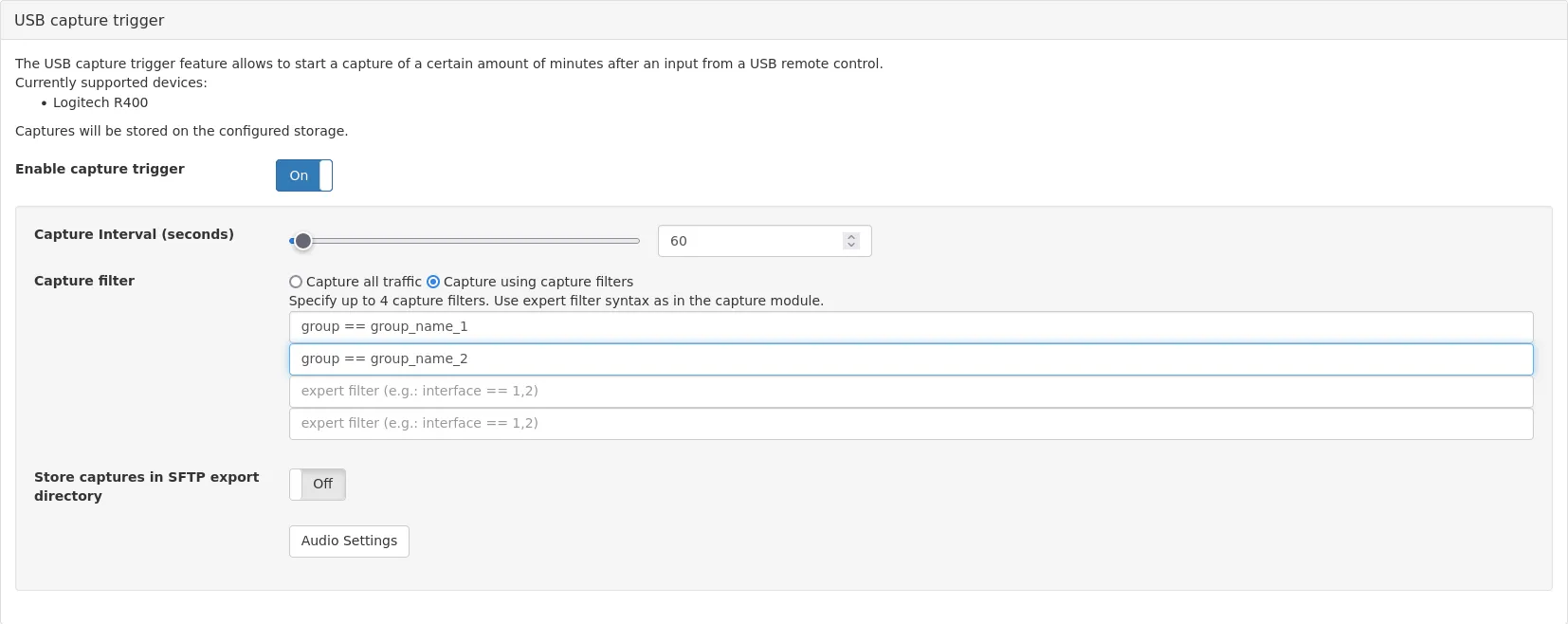
Section titled “Advanced Multi-PCAP Setup”There are situations where the Allegro Network Multimeter may be configured to record multiple separate PCAPs, each with specific filters, with only one button-press on the USB presenter. This can be done by enabling the Capture filter in the USB capture trigger section. Filter syntaxes are described in the Capture module.
A good example is the installation of an Allegro 500 with 2 links and 2 virtual link groups (see Virtual Link Group Configuration Guide), one before and one behind the firewall:
As a second example, you can record PCAPs of up to 4 different IP addresses at the same time with just one click: