Debugging MS Teams Traffic
This page describes how Microsoft Teams traffic can be analyzed with the Allegro Network Multimeter.
Microsoft Teams client protocols
Section titled “Microsoft Teams client protocols”The Microsoft Teams clients rely on TLS for all control based traffic and RTP for all audio/video based traffic.
The Allegro Network Multimeter allows you to search for traffic to the Microsoft cloud, helps to analyze the response time of the TLS encrypted control traffic and analyzes the RTP traffic for quality parameters like packet loss, jitter, etc.
Microsoft Teams control traffic
Section titled “Microsoft Teams control traffic”Microsoft Teams traffic is TLS encrypted. This does not allow for decoding and analysis of the control connection content. Since TLS uses TCP as the Layer 4 protocol, all of the TCP connection quality statistics can be used for debugging. Additionally, the response time for the TLS handshake and the first encrypted TLS data response time is available.
The most important quality parameters are:
- TCP handshake response time
- TCP retransmission rates
- TCP Zero Window times
- TLS hello handshake response time
- TLS first data response time
Please read the TCP module and TLS module for more information on these and more counters.
A simple way to see an overview of the response time for Microsoft Teams
servers is the IP Statistics table. You can use the free
text search for teams and select from the graph dialogue: TCP response
time. This will present you the top IP addresses with a correlated name
to teams and their TCP response times. You can also enable the
Timing columns to view and sort for response times.
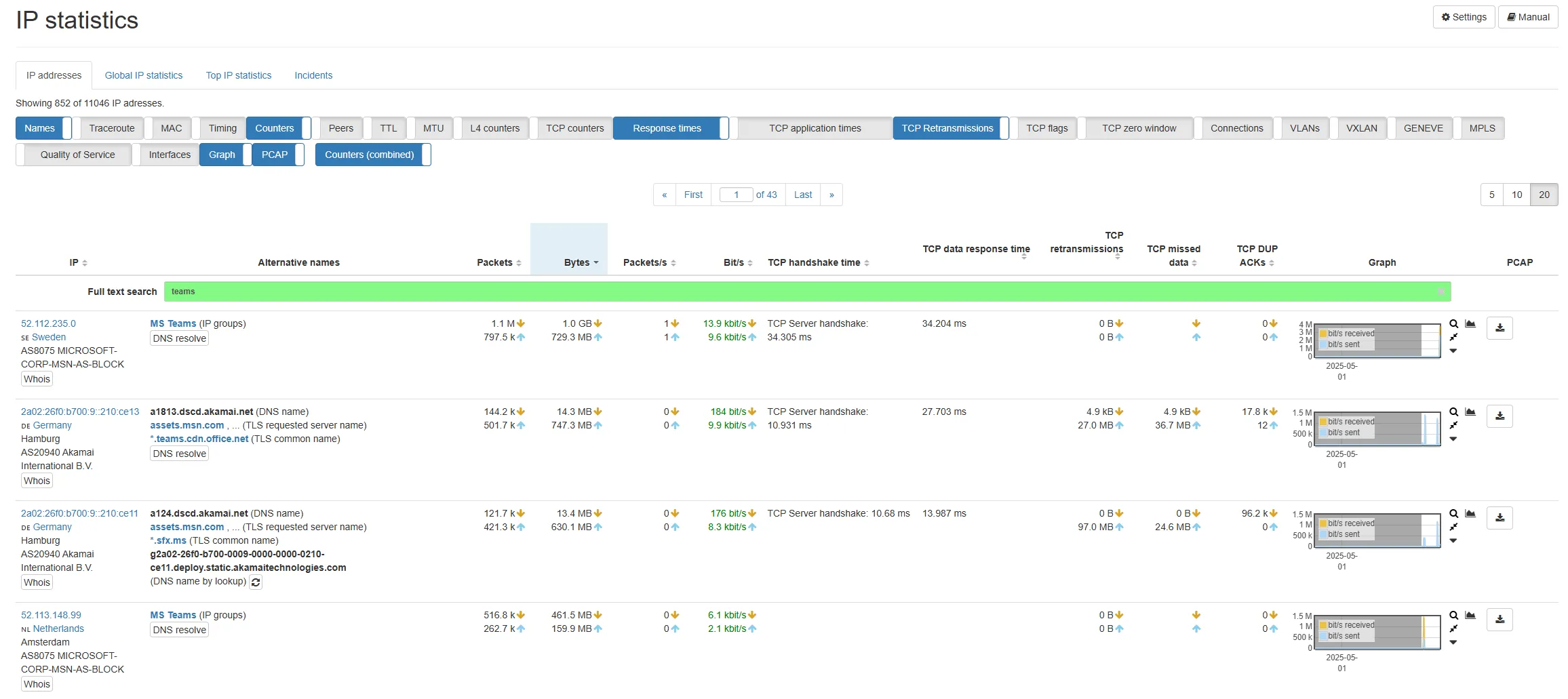
This graph shows you the TCP stack delay to confirm data reception. Note that many TCP stacks wait a few milliseconds if there is no data to respond to (see Wikipedia: TCP delayed acknowledgment). Any additional delay on top of this time (usually 40 ms) indicates a significant roundtrip time delay. If you have installed the Allegro Network Multimeter close to the Microsoft Teams client, it will be the roundtrip time of the TCP packets from your network to the Teams cloud.
DNS names and IP address ranges for Microsoft Teams are subject to change regularly, since the control servers in the Microsoft cloud use load balancing, which can point data to different servers.
The analysis can also be done for TCP retransmissions and TCP Zero Window statistics. If you have installed the Allegro Netwok Multimeter close to the Microsoft Teams client, this will indicate if the data sent to the Teams server required a retransmission on the WAN link or if the receiver buffer is full, indicating receiver overload.
Microsoft Teams audio/video traffic
Section titled “Microsoft Teams audio/video traffic”The Microsoft Teams audio/video traffic is sent by encrypted RTP frames. As RTP encryption is applied only on the content and not on the RTP header, you can still debug the RTP traffic with the RTP decoder output of the Allegro Network Multimeter.
To get an overview of which IPs have used RTP, you can use the
L7 - Application → RTP Statistics page and search for Teams.
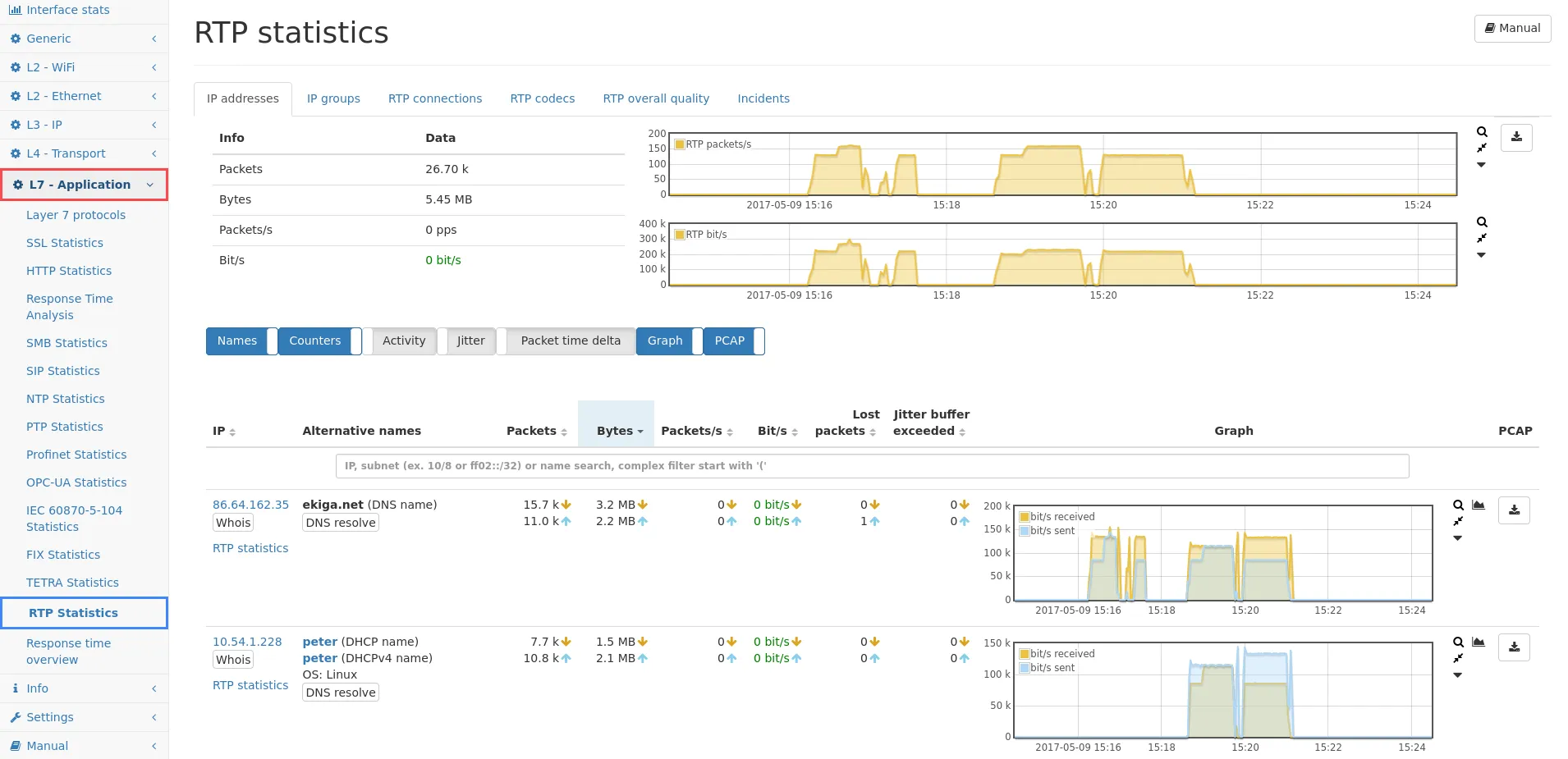
This allows you to see which IP addresses have used the protocol RTP. It shows an overview of the RTP packet loss and jitter based on RTP sequence numbers. To obtain detailed information about individual connections, click on the IP address. This will show RTP packet loss and jitter for each connection.