
Parallel packet processing
The parallel packet processing mode allows you to analyze historic packets in parallel to the live analytics on one Allegro Network Multimeter. The Allegro Network Multimeter supports PCAP files and packet ring buffers as input for the parallel packet processing.
How can I configure parallel packet processing?
Section titled “How can I configure parallel packet processing?”You can enable parallel packet processing at Settings → Global settings → PCAP parallel analysis. This mode has 3 options:
- Enable parallel analysis: Globally enable/disable this mode.
- Reserved memory in percentage of main memory: Set the relation of memory reserved for parallel packet processing to the total available memory. Minimun and maximum values depend on the amount of RAM installed in your Multimeter. Increasing this value reduces the memory available for the statistics stored in live analysis.
- Number of offline analysis slots: Set the available parallel analysis slots. Since every slot will reserve a certain amount of memory, higher values will reduce the memory available for statistics stored in live analysis. The default value is 1.

Allegro Packets recommends you to enable parallel packet processing with default values and restart the processing. Please be aware that your current measurement will be lost when restarting the processing.
How can I use parallel packet processing?
Section titled “How can I use parallel packet processing?”PCAP upload
Section titled “PCAP upload”Once you have enabled this feature and restarted the processing, you can use it by uploading a PCAP file at Generic → PCAP analysis. Please select a PCAP file here.
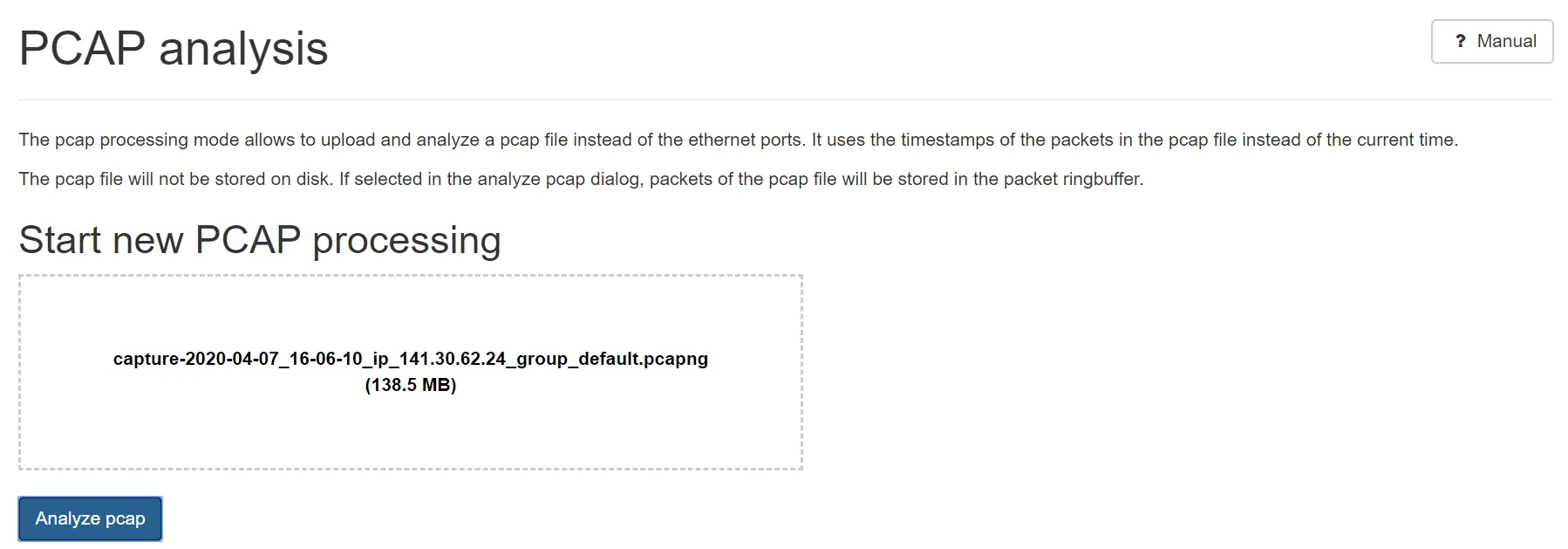
Once a file is selected and you press Analyze PCAP, the following pop-up will appear:
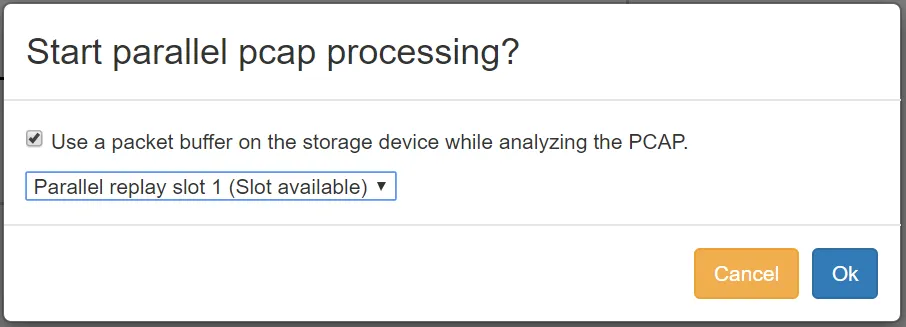
The Option Use a packet buffer… will store a temporary second packet ring buffer on the storage device to allow PCAP extraction after the PCAP upload. This option is only available if there is a storage device attached.
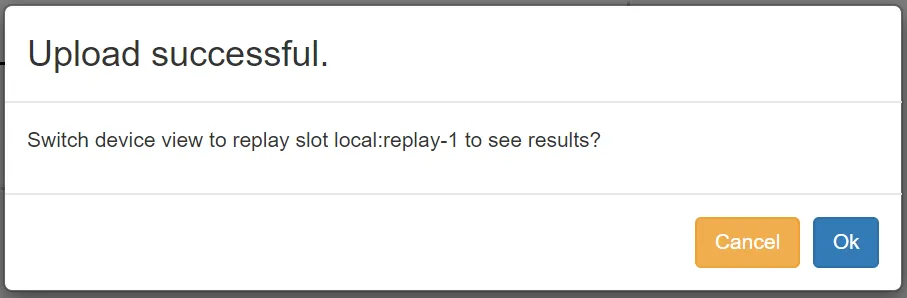
Once you click OK, the file will be uploaded and analyzed immediately. If the upload is complete, you will see the following dialogue:
To switch between the PCAP and the live analysis, use the selector in the top menu.
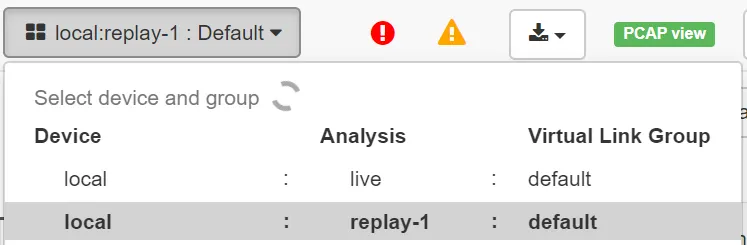
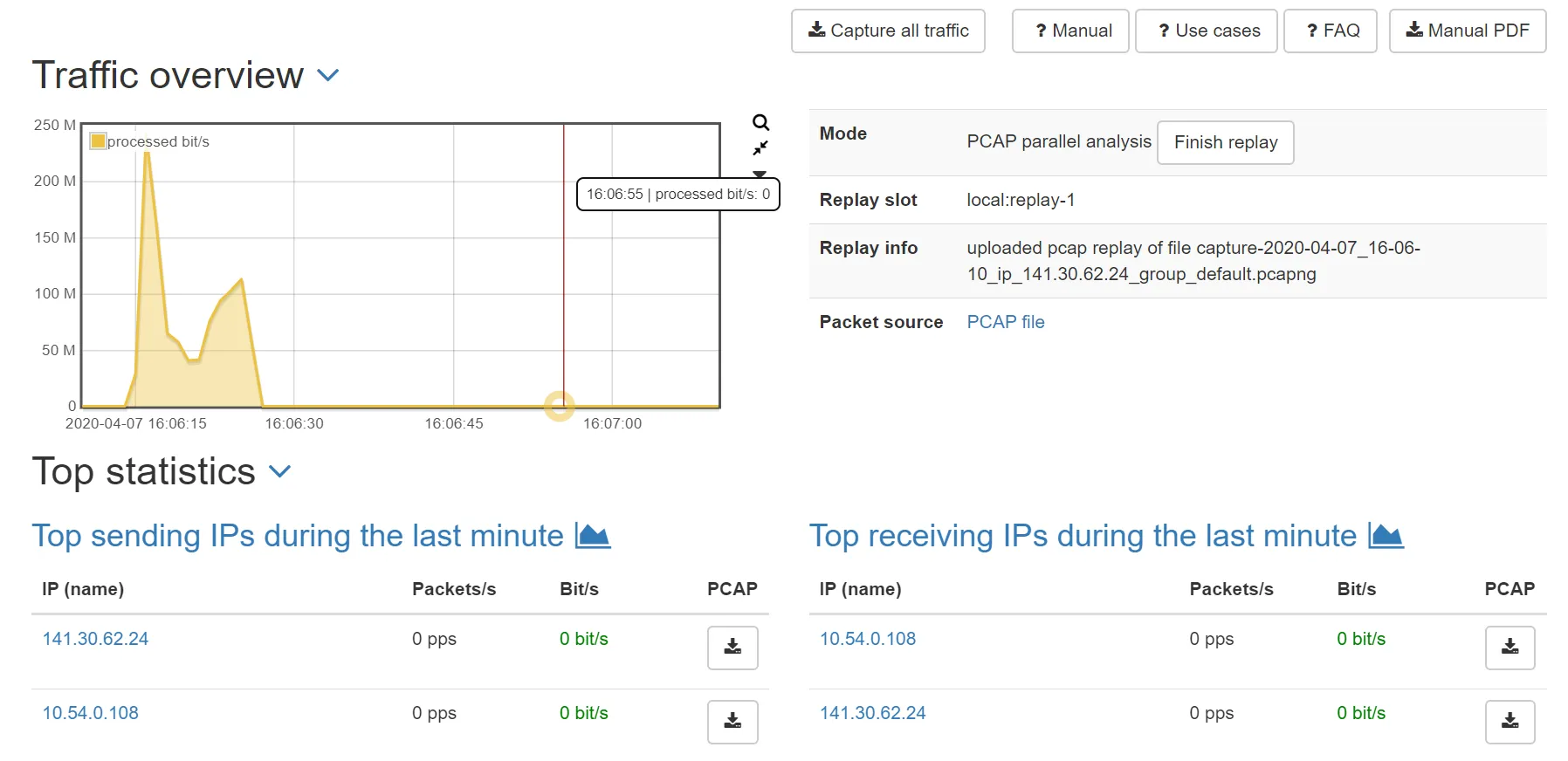
The Allegro Network Multimeter will keep the replay open even if you close the browser session. You can terminate the PCAP replay session at the dashboard:
Packet ring buffer analysis
Section titled “Packet ring buffer analysis”The packet ring buffer analysis works similar to the PCAP upload, except that a part or the total packet ring buffer is used. Please navigate to the packet ring buffer statistics at Generic → Packet ring buffer. Select a time which shall be re-analyzed.

Then press the button Analyze packet ring buffer below the graphs and the following dialogue will appear.
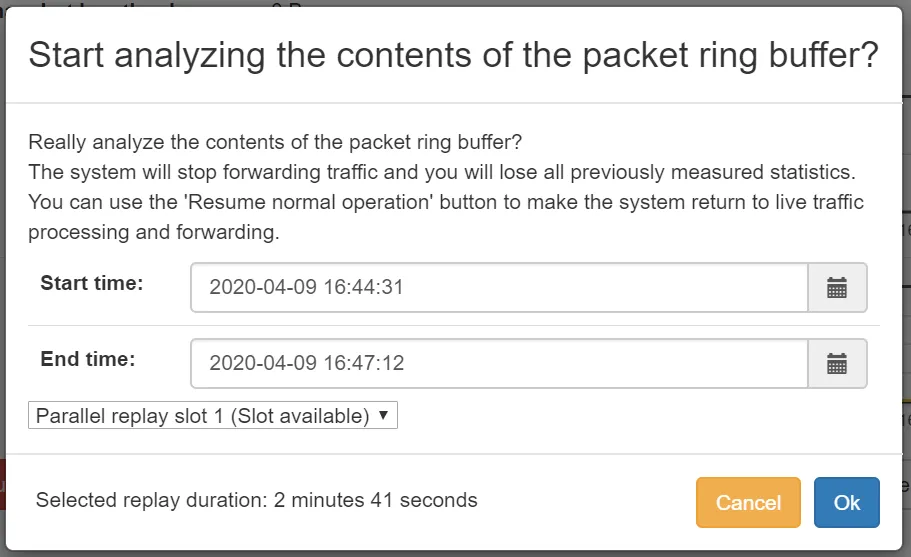
Here you can select the replay slot. Once the replay is started, you can proceed like the PCAP upload and select the replay and terminate it on the dashboard.
Process traffic capture from remote device
Section titled “Process traffic capture from remote device”When parallel packet processing is enabled, you can use the configured analysis slots to analyse traffic captures from remote devices. See the Parallel remote packets section for more details.